With your infrastructure code and pipeline configuration committed to your branch, the next step is to create a merge request. This merge request triggers the Continuous Integration (CI) pipeline, which executes the validate, plan, deploy, and test stages to automate the Nexus fabric configuration deployment.
Step 1 - Review the GitLab Pipeline Execution
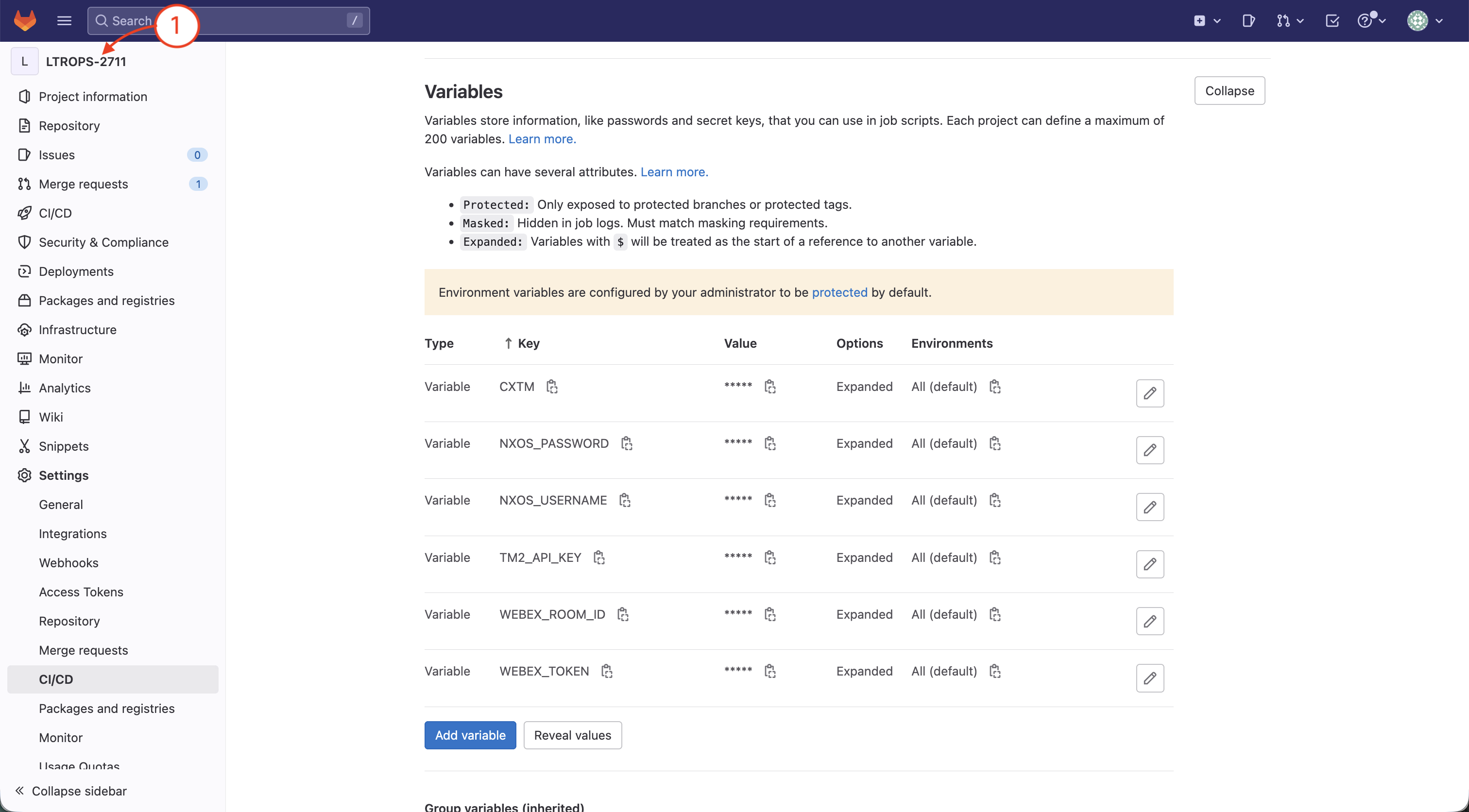
Return to GitLab repo by clicking on the LTROPS-2711 project name on the left side menu.
Step 2 - Create a Merge Request
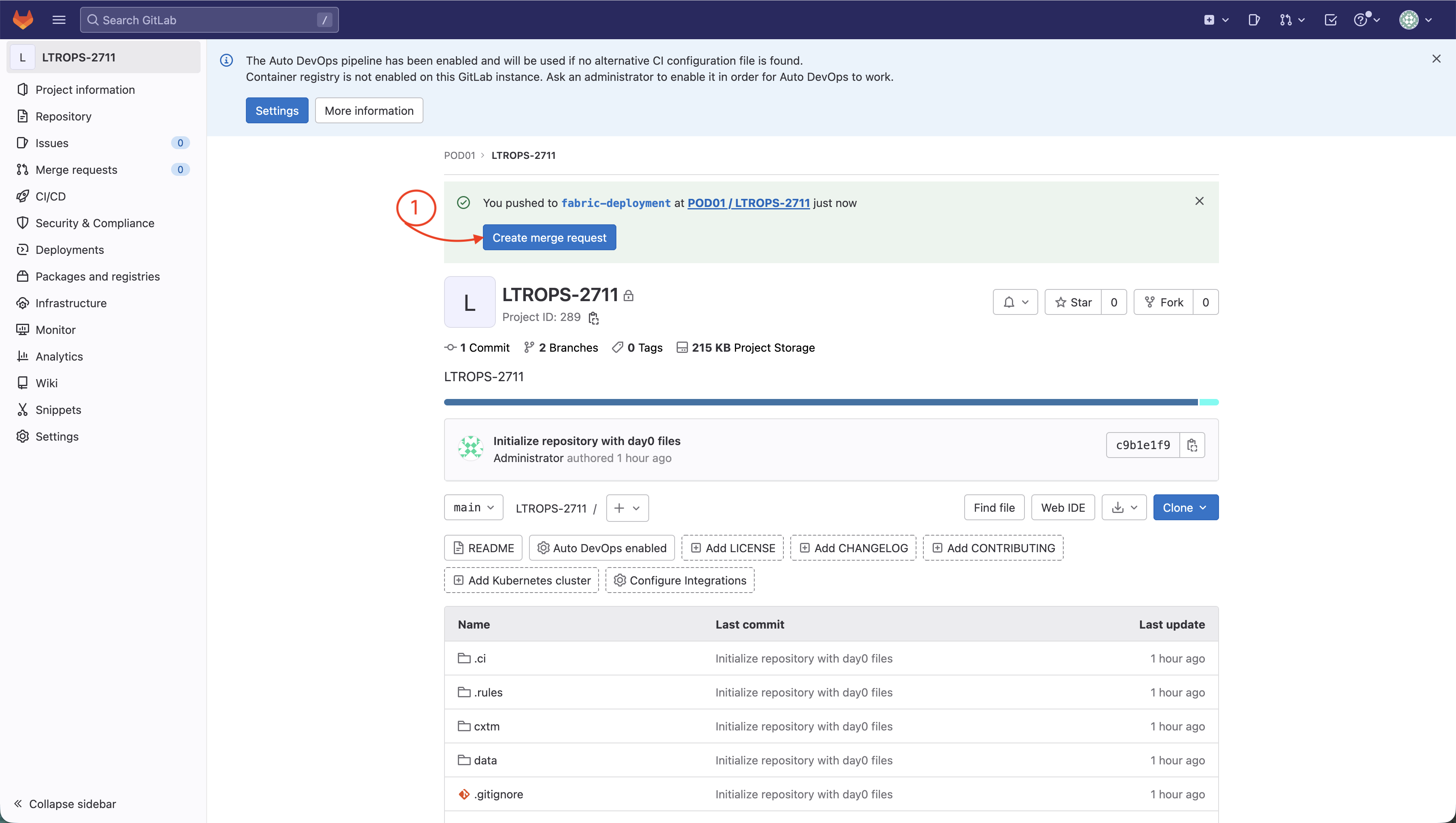
From your GitLab project page:
Click Create merge request
Step 3 - Open Merge Request
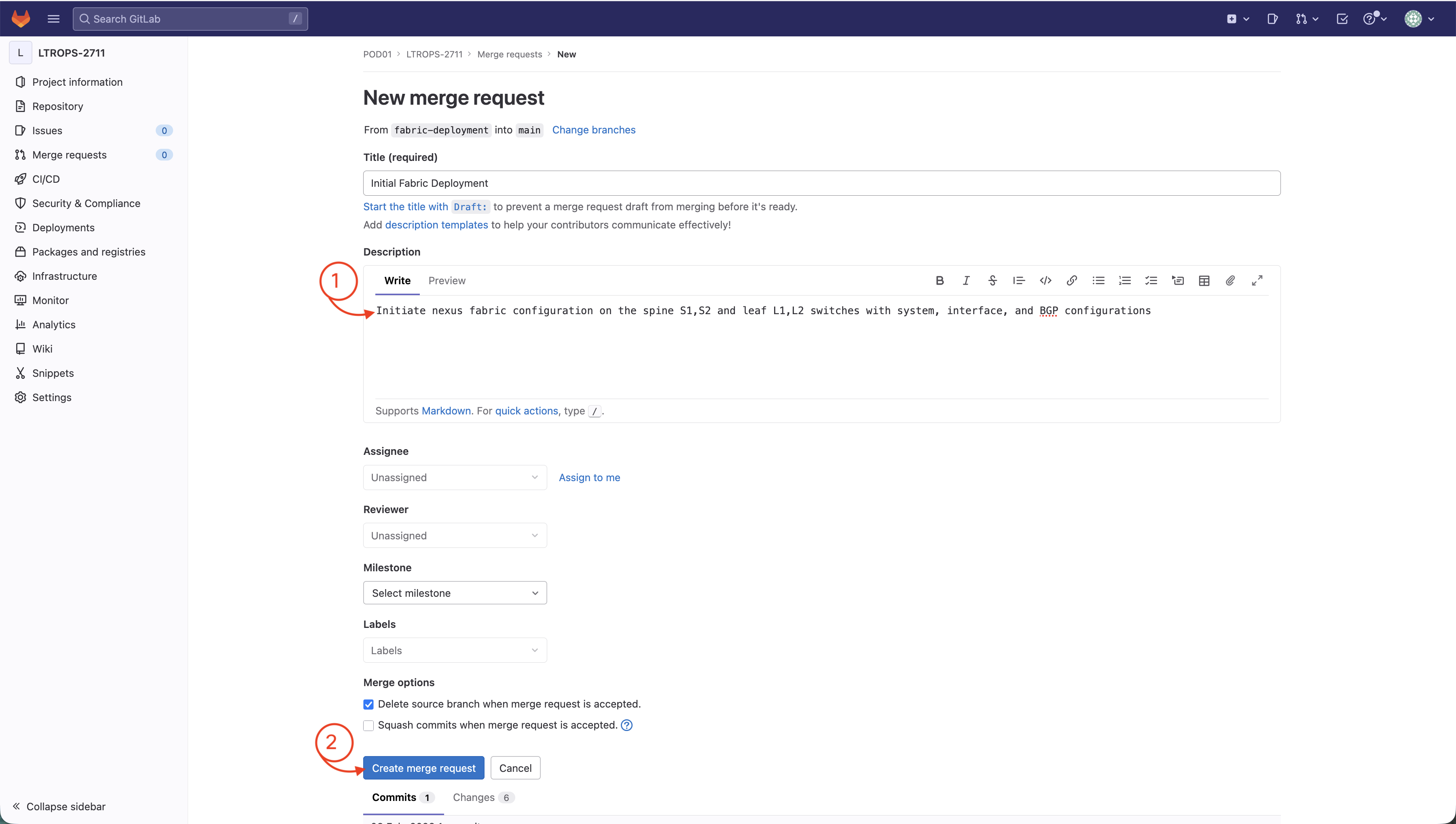
In the New merge request window, perform the following:
Insert a description: Initiate nexus fabric configuration on the spine S1,S2 and leaf L1,L2 switches with system, interface, and BGP configurations
Click Create merge request
Step 4 - Navigate to Pipeline
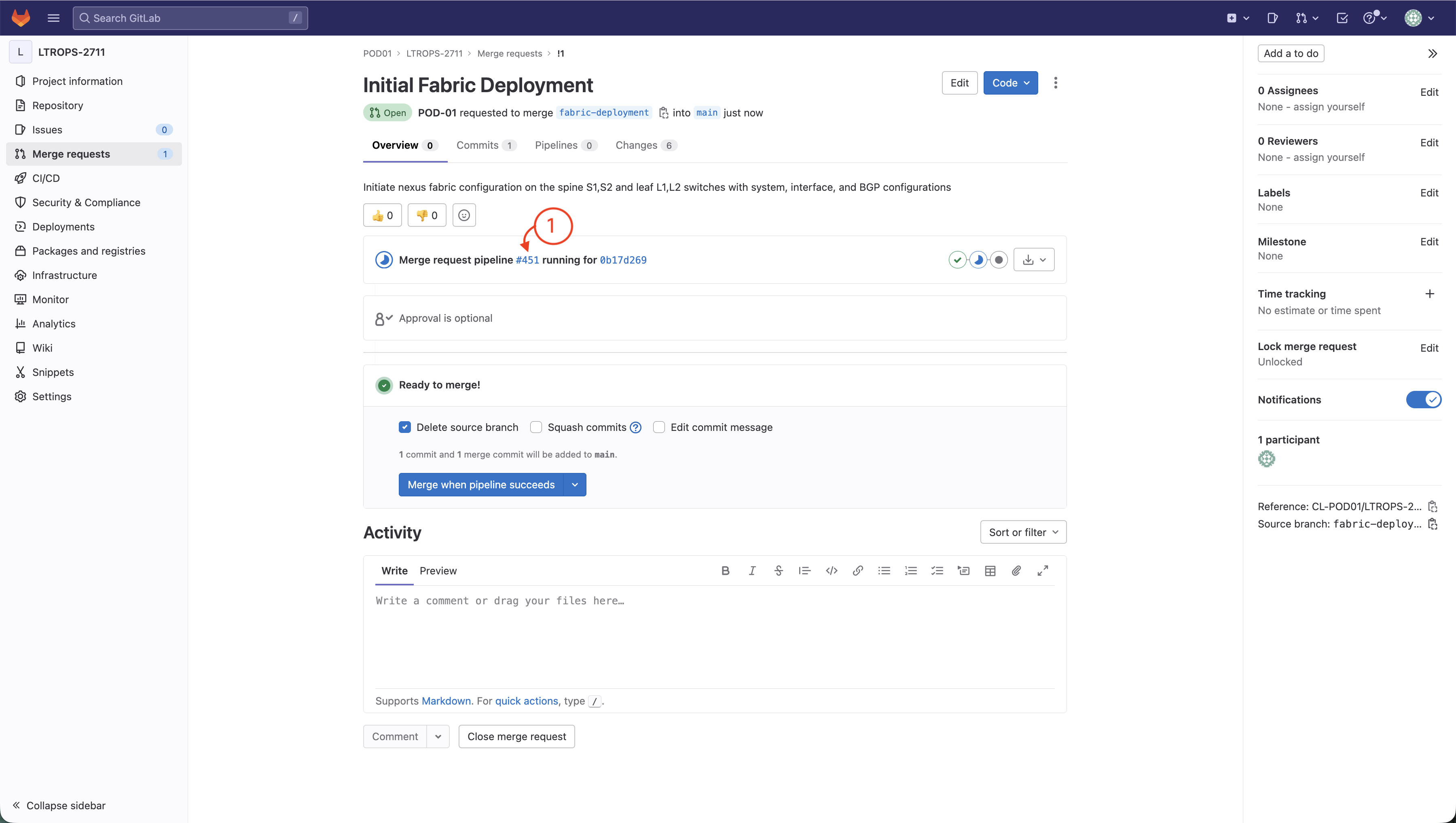
Navigate to the pipeline that was launched when you opened your merge request:
Click the number for the merge request pipeline number that comes after Merge request pipeline
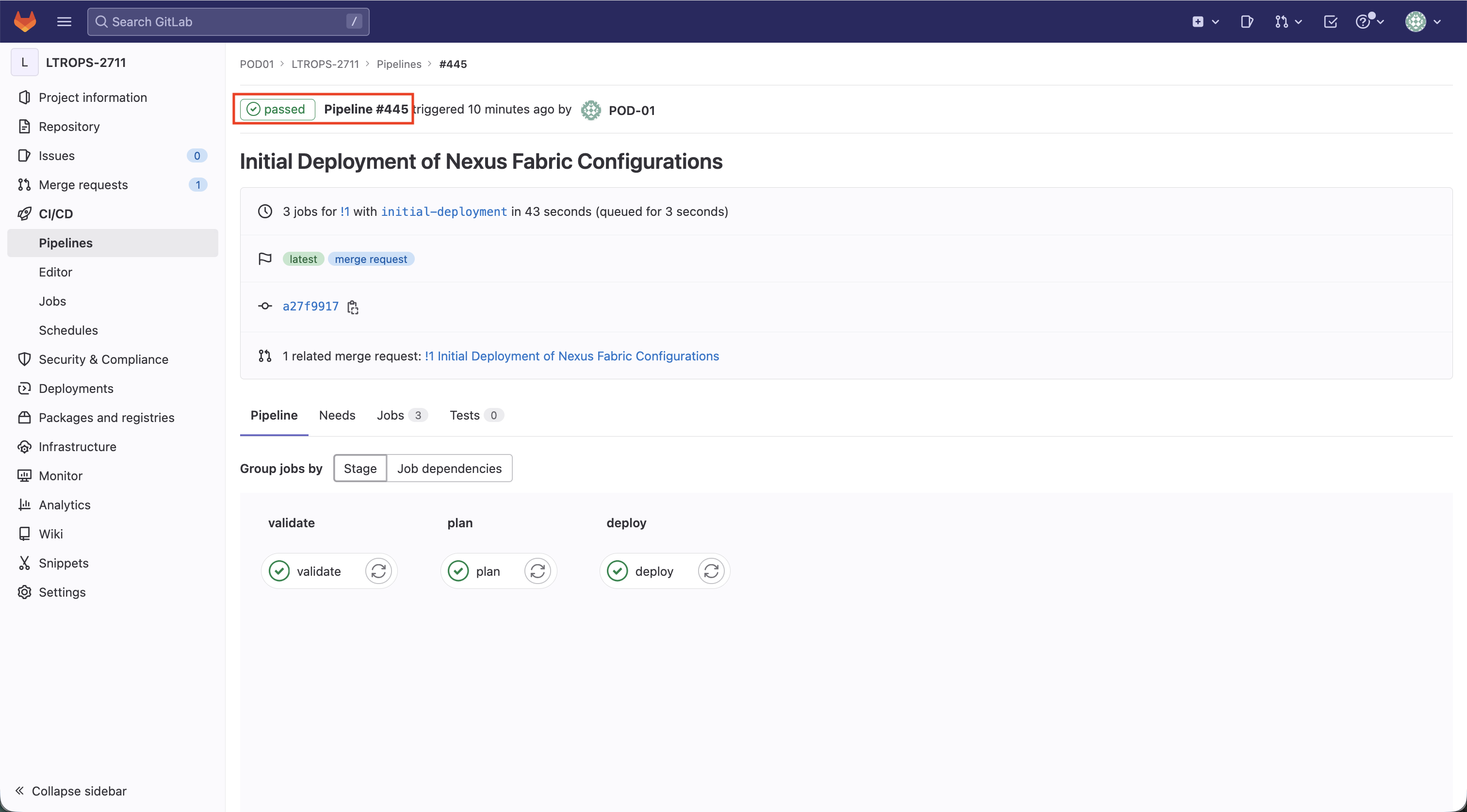
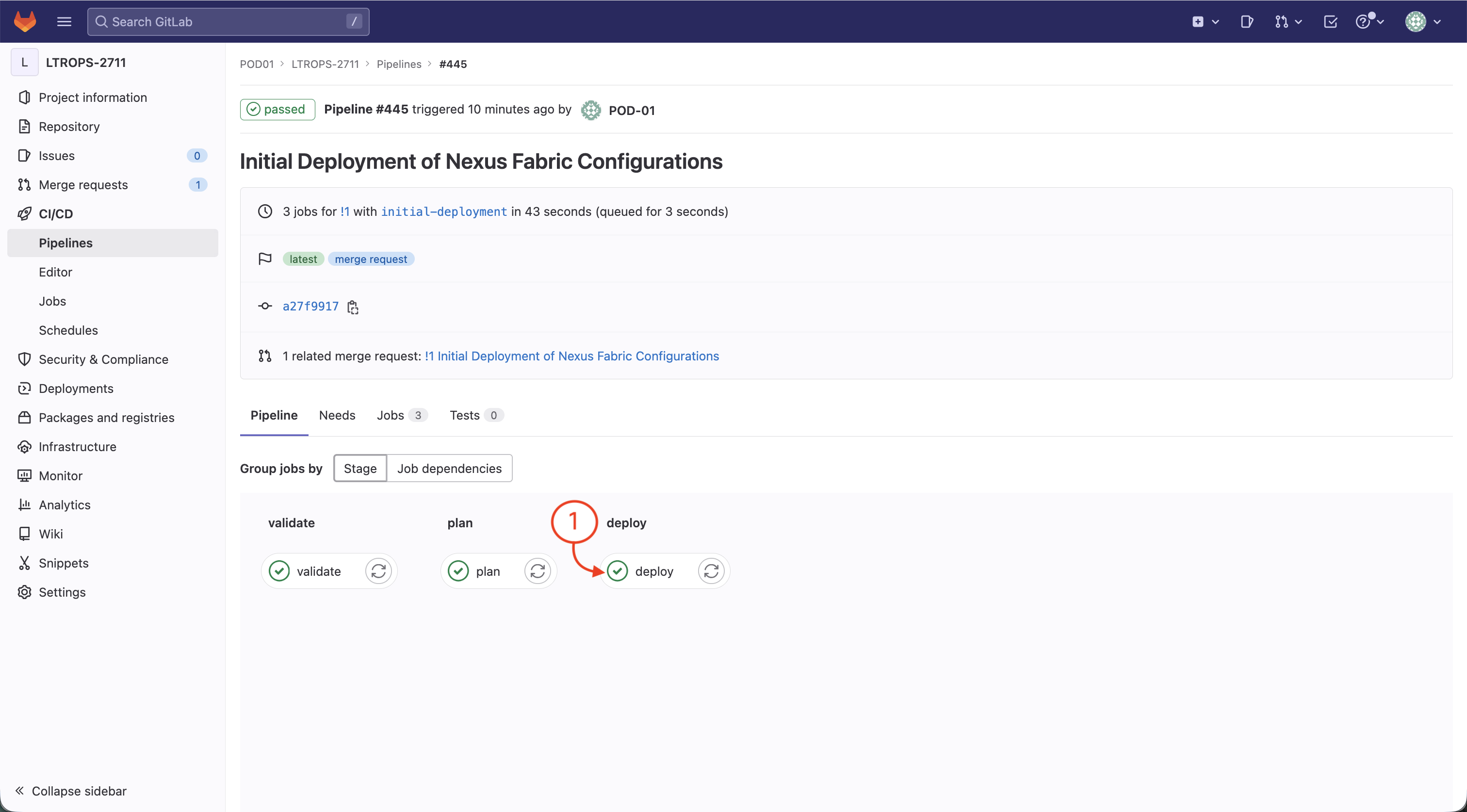
Step 5 - Review Overall Pipeline
At this point, you should have successfully triggered the CI pipeline for your proposed initial deployment configuration. The screenshots below show a completed and Passed pipeline. If your own pipeline is still running, please wait until all your pipeline stages have completed before proceeding.
Alert
Notify your proctor if any stages of your pipeline have Failed before moving on.
Step 6 - Navigate to Validate Stage
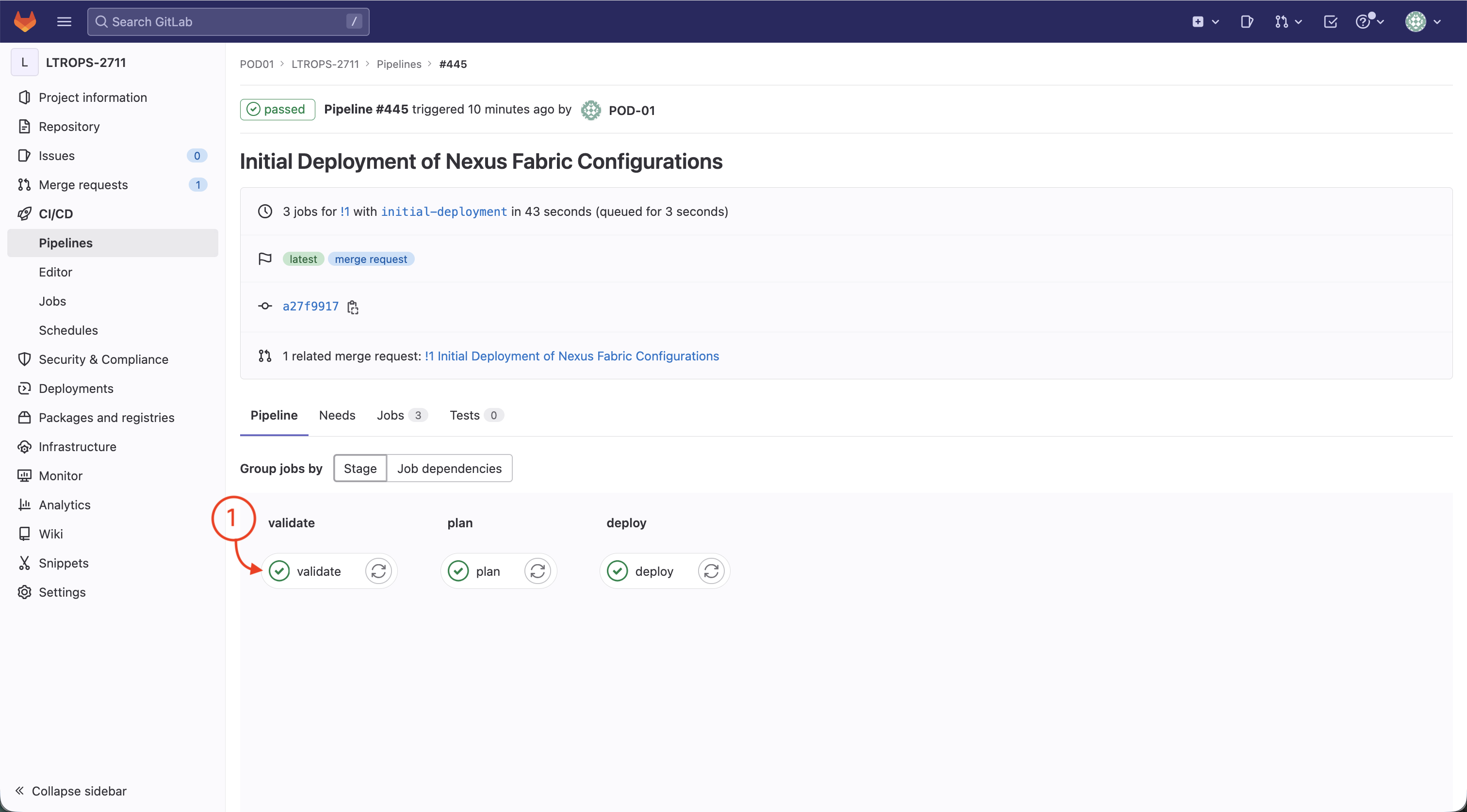
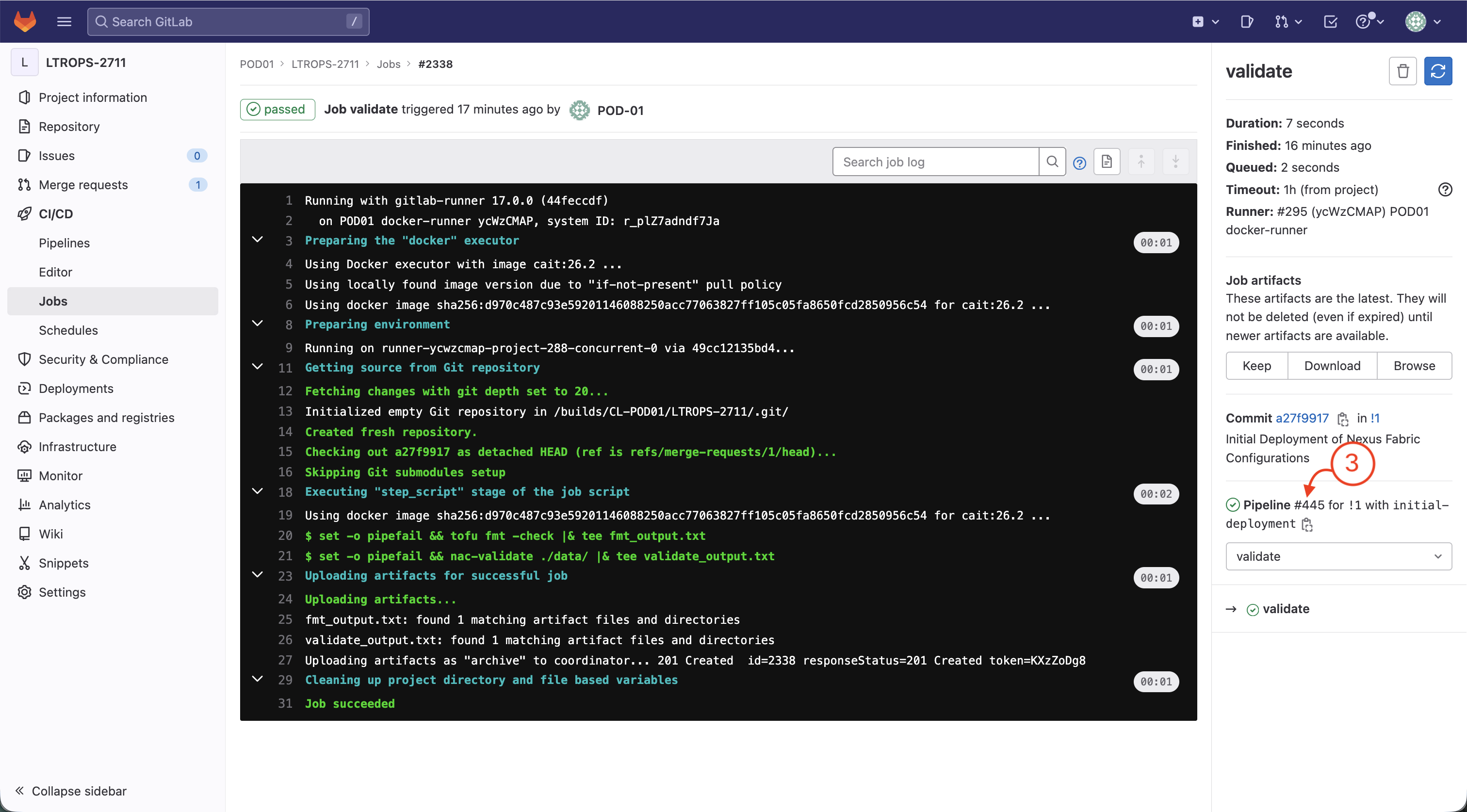
The validate stage checks the syntax of your Terraform configuration and YAML files. Let's review the results.
Click on the validate stage to view the validation job execution results.
Review the pipeline execution to ensure the validation job completed successfully.
Click the pipeline number on the right-side pane.
Step 7 - Navigate to Plan Stage
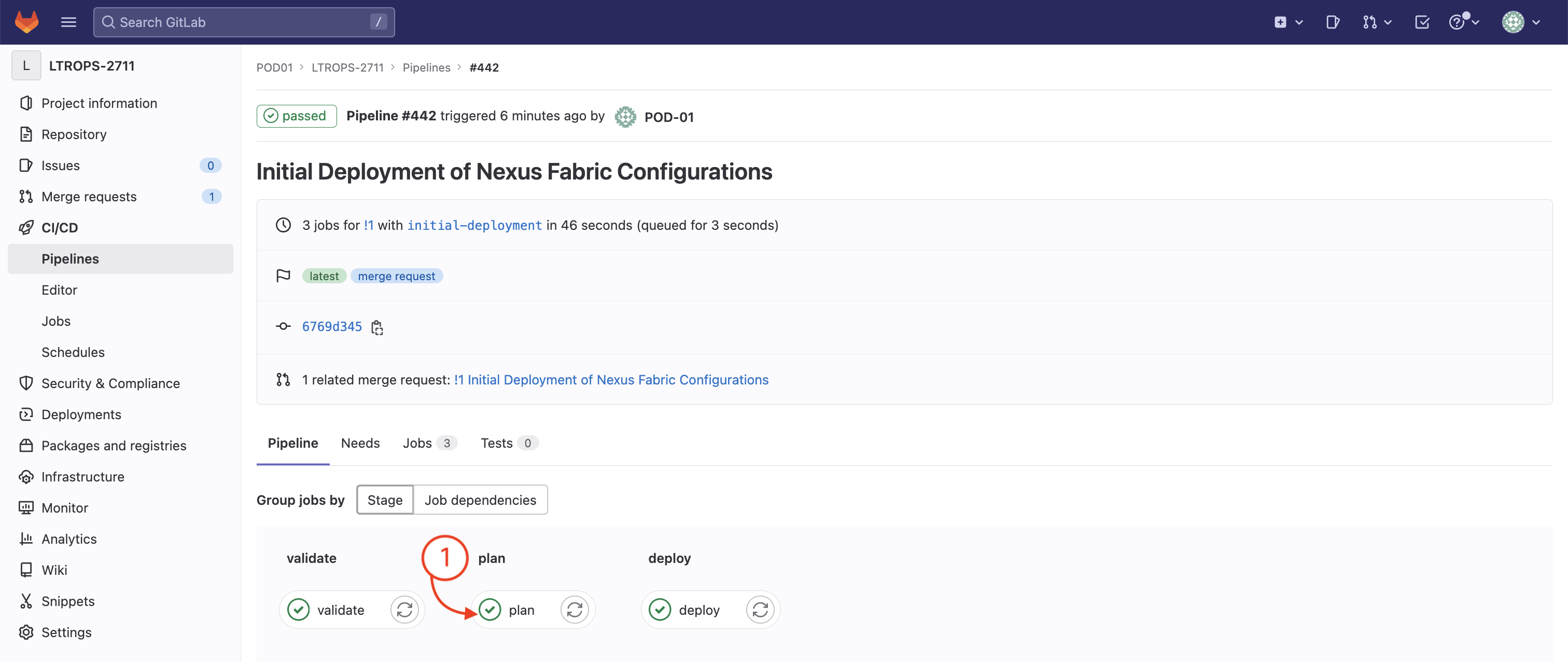
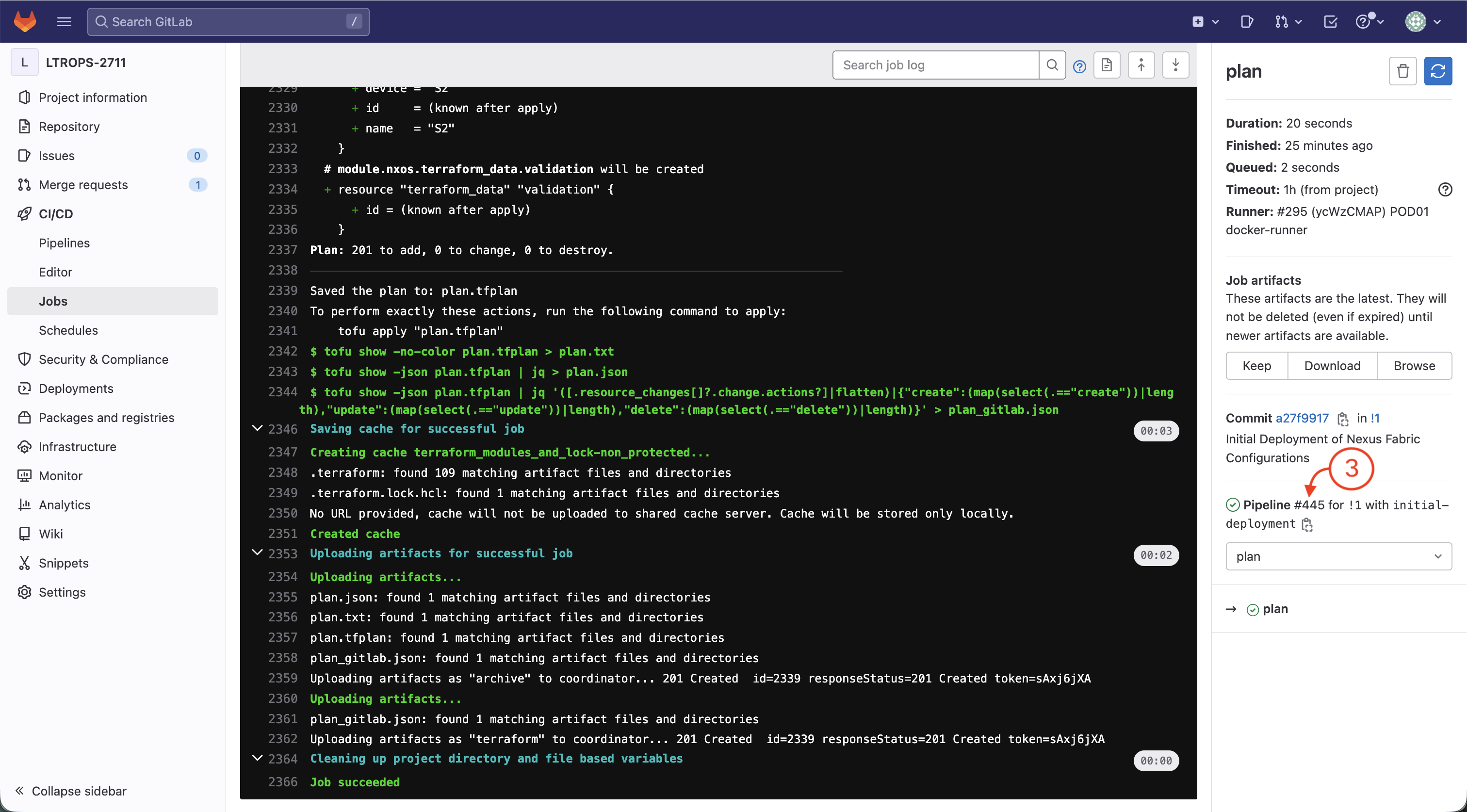
The plan stage generates an execution plan that identifies which resources will be created, modified, or destroyed on your Nexus fabric.
Click on the plan stage to view the plan stage execution results.
Review the pipeline execution to ensure the plan job completed successfully.
Click the pipeline number on the right-side pane.
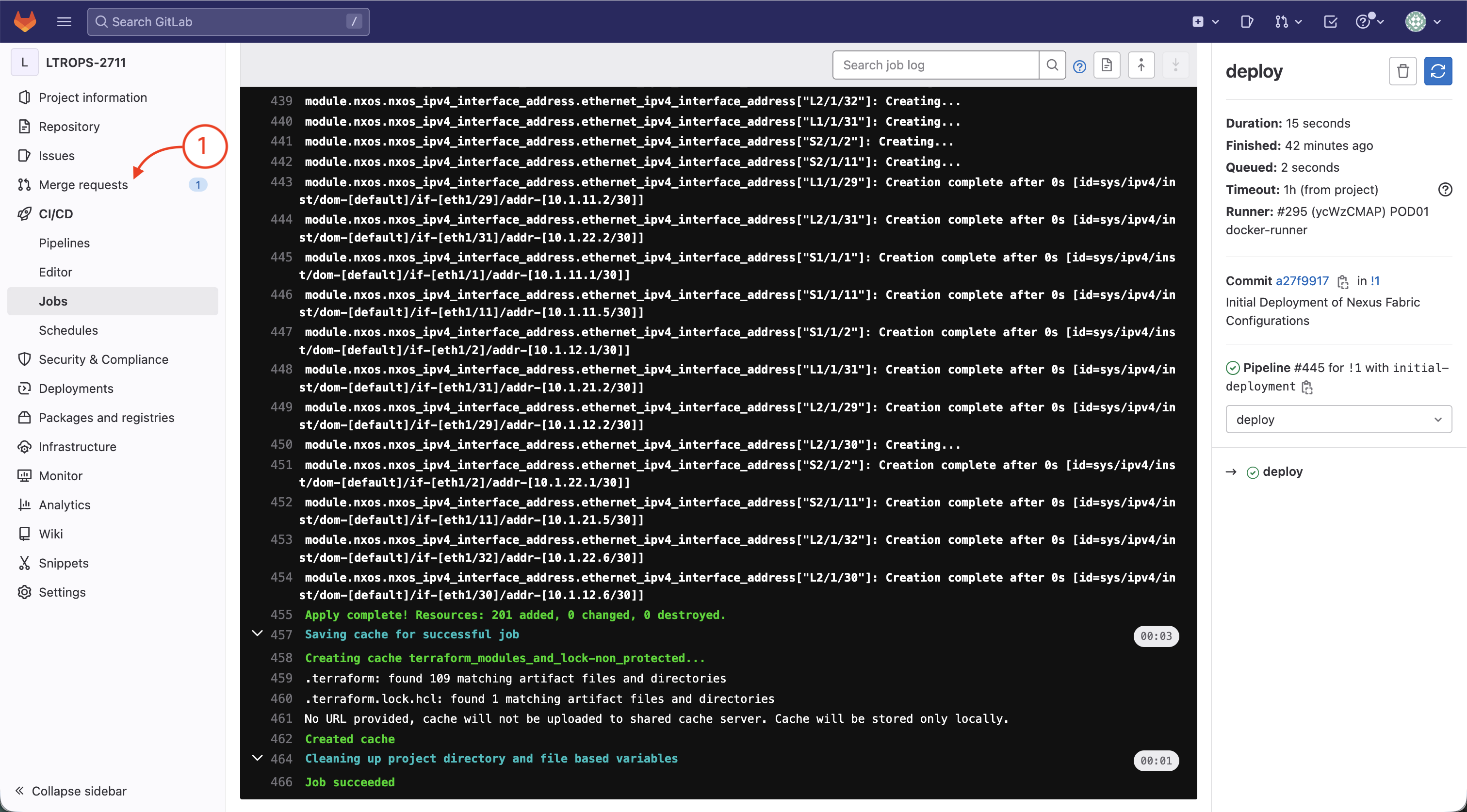
Step 8 - Navigate to Deploy Stage
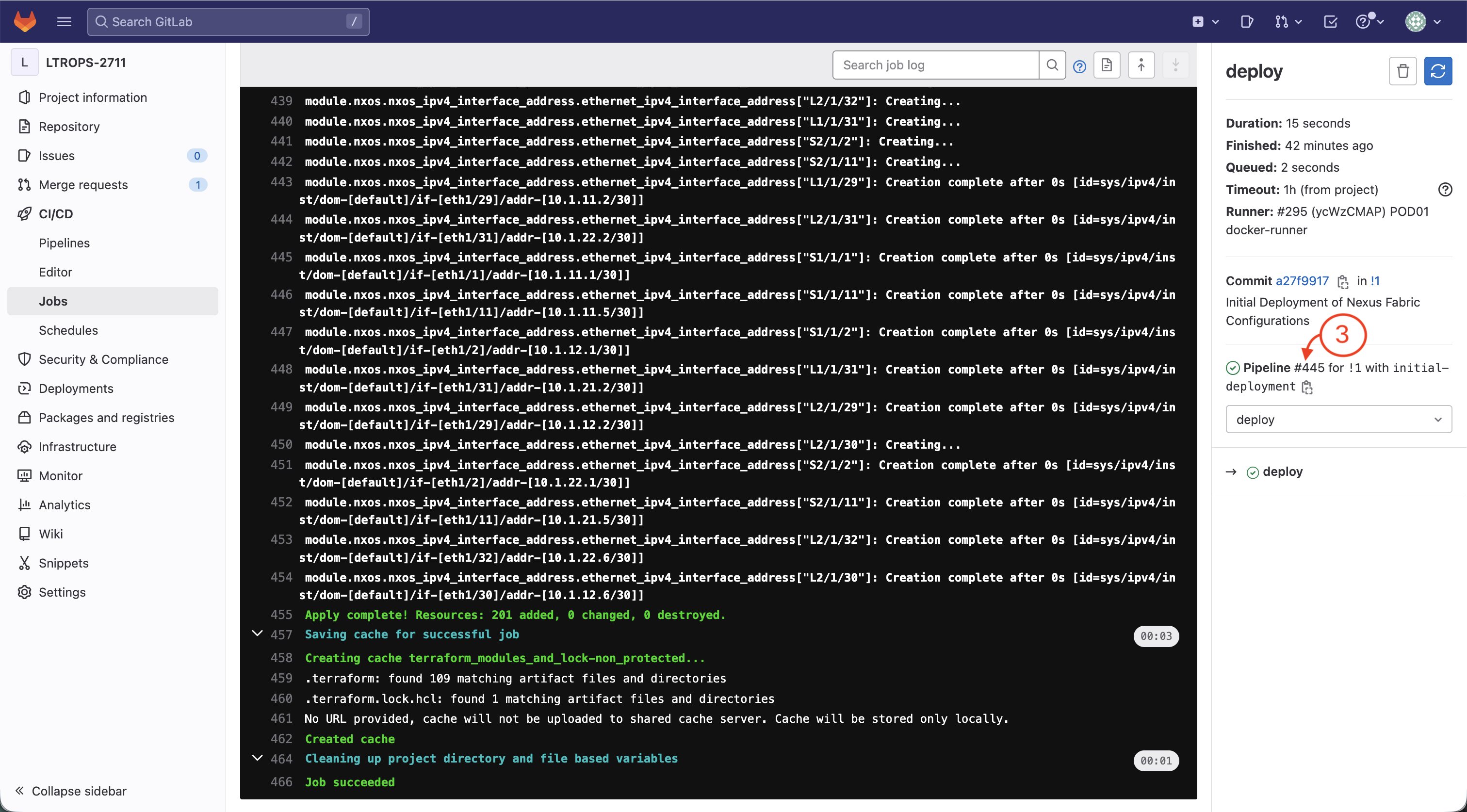
The deploy stage applies the configuration changes to your Nexus fabric by executing the Terraform apply.
Click on the deploy stage to view the deployment execution results.
Review the pipeline execution to ensure the deploy job completed successfully.
Click the pipeline number on the right-side pane.
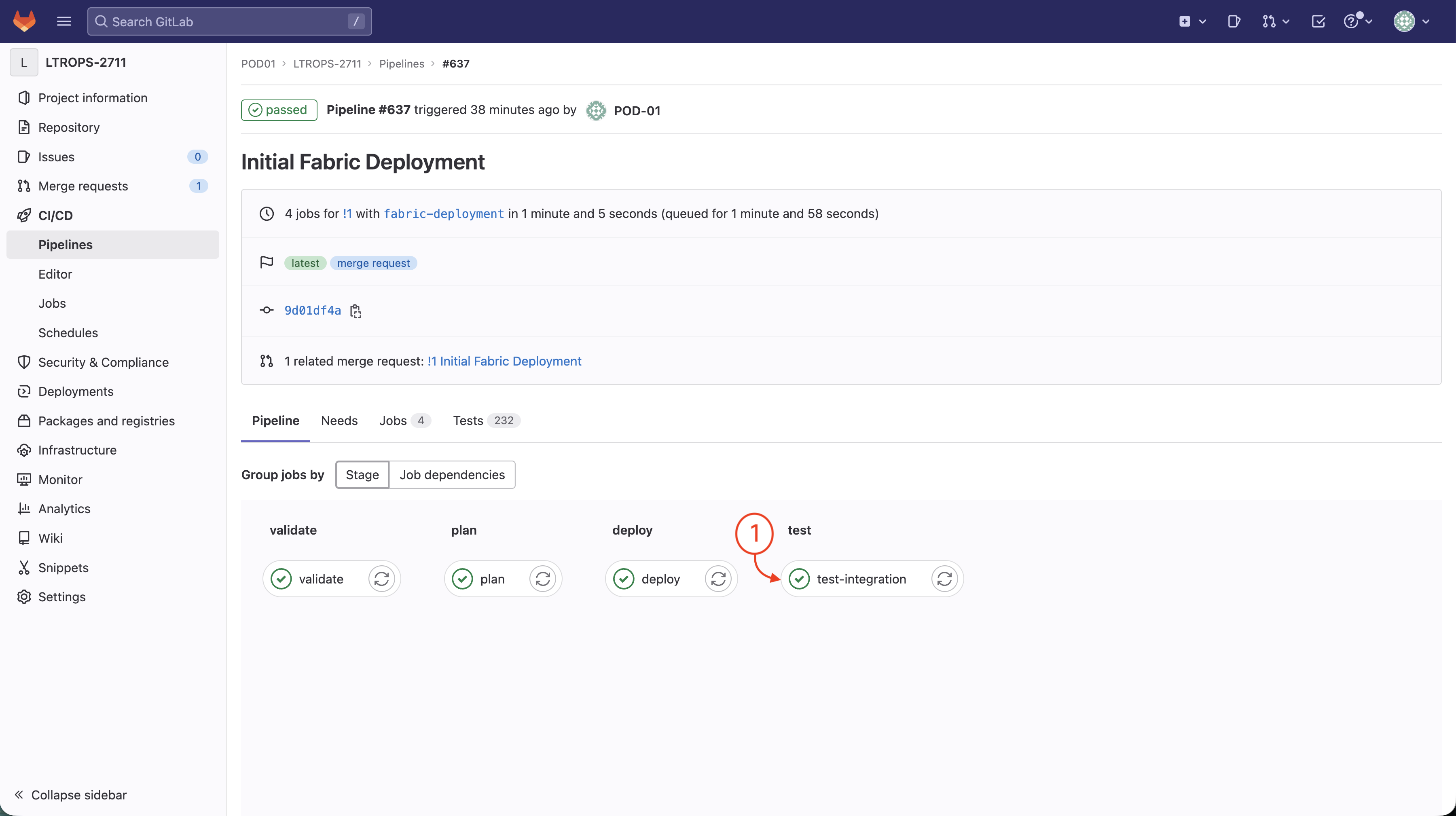
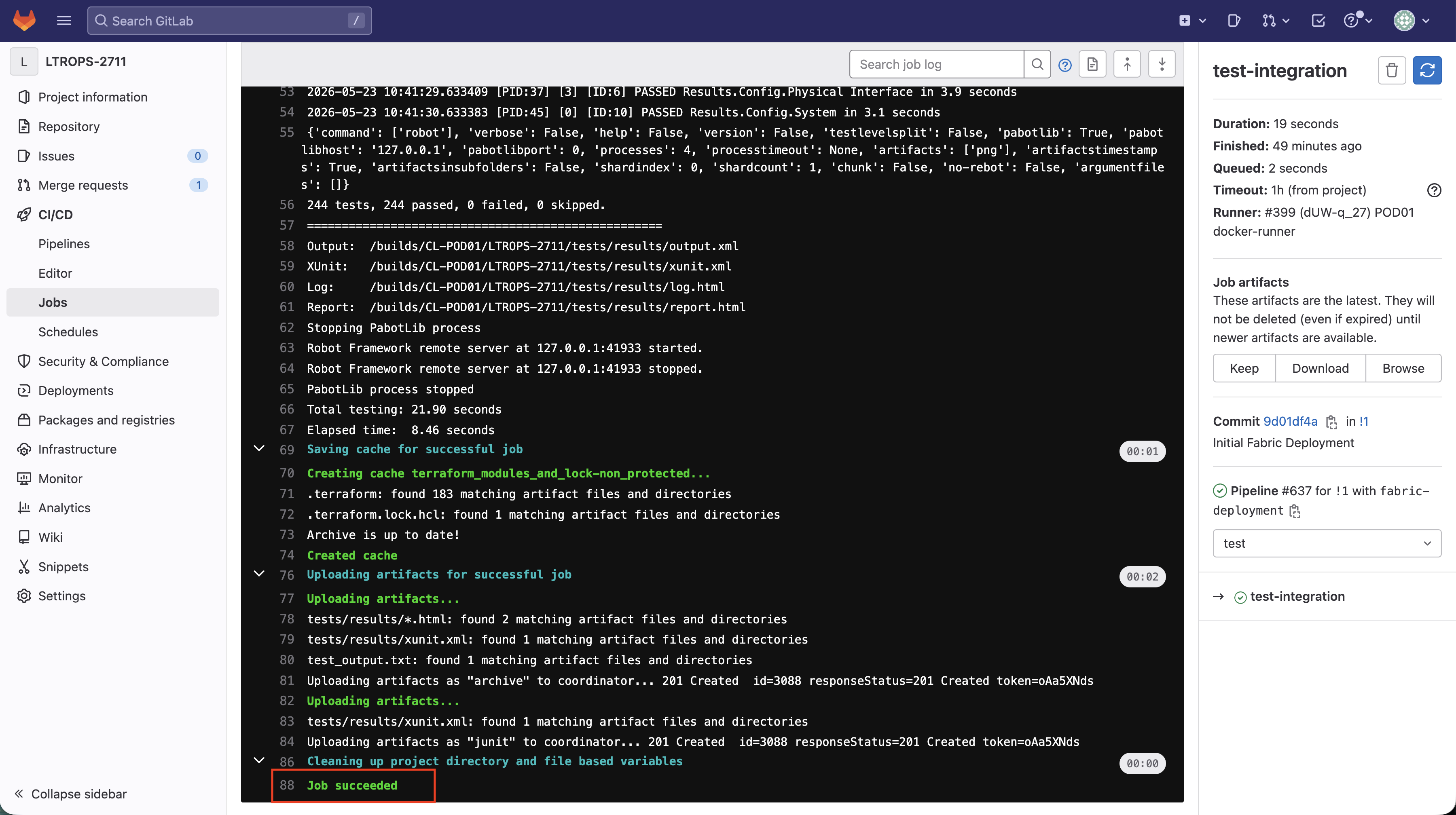
Step 9 - Navigate to Test Stage
The test stage runs automated integration tests to validate that the deployed network configurations are functioning correctly.
Click on the test-integration stage to view the test execution results.
Review the pipeline execution to ensure the test job completed successfully.
Step 10 - Return to Merge Request to Complete the Merge
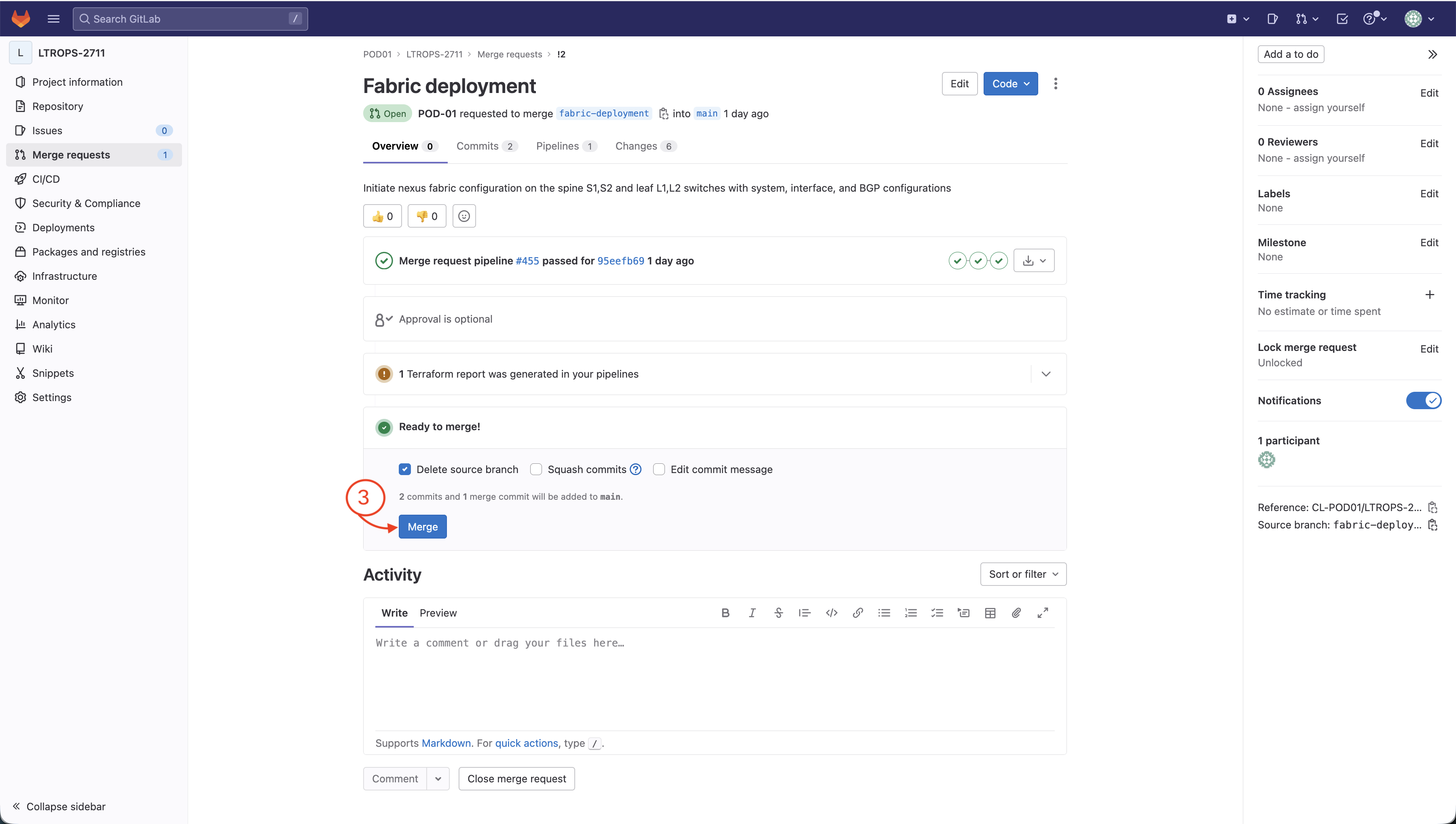
After reviewing the deployment results, return to your merge request to complete the merge and integrate your changes into the main branch.
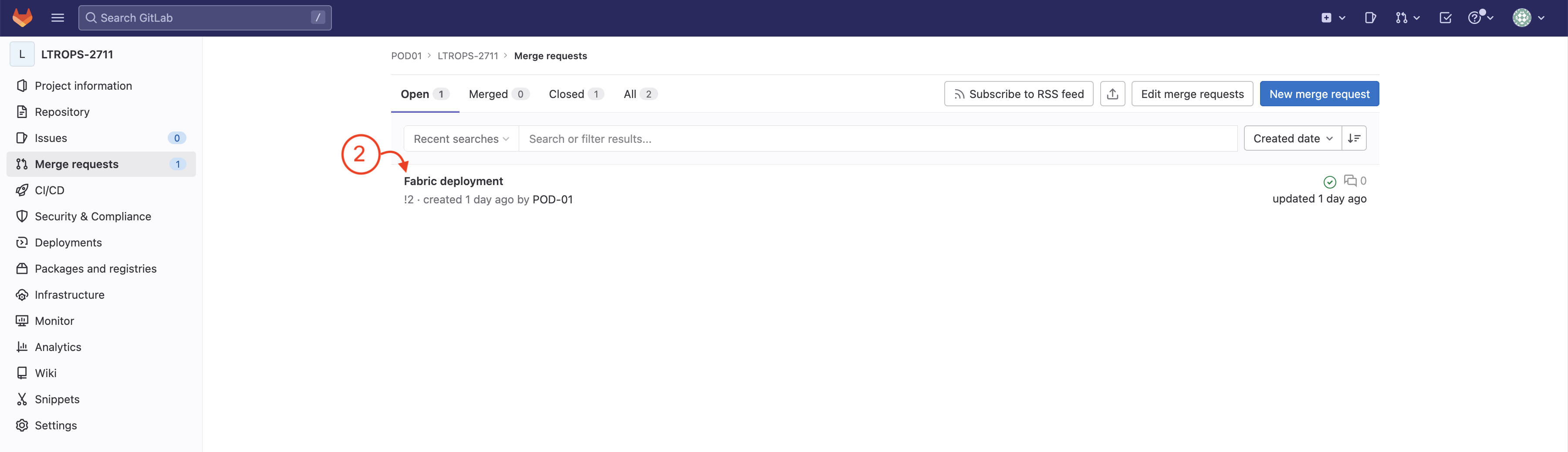
Click on the Merge requests on the left side menu to return to the merge request page.
Click on the open merge request Initial Fabric Deployment to view the merge request details.
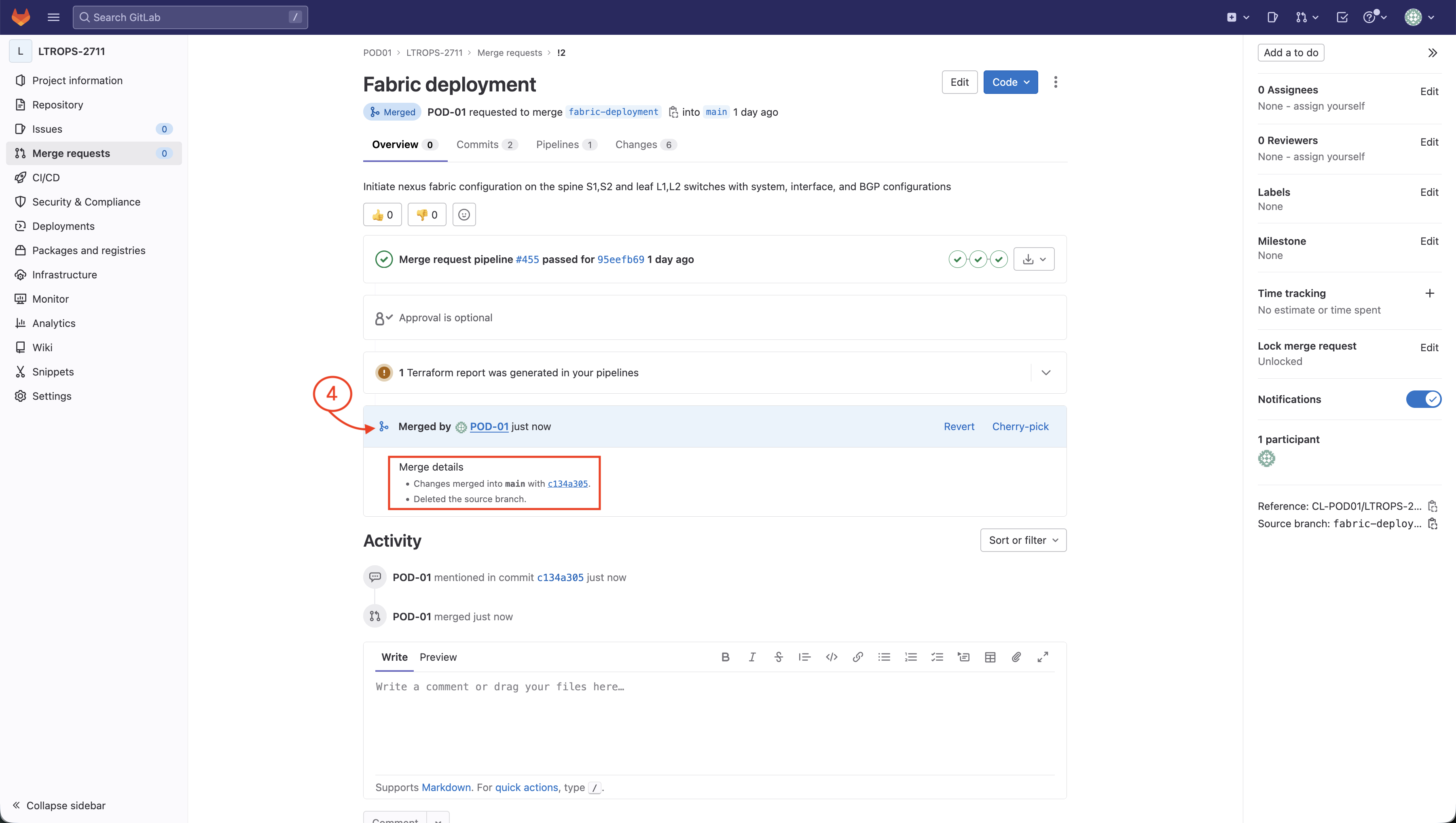
Click the Merge button to complete the merge and integrate your fabric deployment changes into the main branch.
Verify that the merge was successful. You should see a confirmation message indicating that the changes have been merged into the main branch.
Return to the VS Code Server browser tab to synchronize your local workspace with the remote repository.
Switch to the main branch by running the following command in the VS Code Server terminal:
git checkout main
Pull the latest changes from the remote main branch to update your local workspace:
git pull
Your local workspace is now synchronized with the remote repository. Continue to the next section to manually check the deployment.