
CXTM Git Config
CXTM Git Integration
  • Introduction
  • NaC Introduction
  • Manual Validation
  • CXTM Introduction
  • CXTM Projects
  • CXTM Test Cases
  • CXTM Test Automation
  • CXTM Git Integration
  • CXTM Batches
  • CXTM Notifications
  • Final Deployment
  • CXTM Reporting
  • CXTM References
  • Bonus Content

CXTM Git Config

In this section, you will configure Git integration in CXTM. Git integration allows you to link your CXTM project to a Git repository, enabling version control and collaboration for your test plans, automation scripts, and other project assets. By the end of this section, you will have successfully connected your CXTM project to a Git repository and be ready to leverage the benefits of Git integration in your testing workflow.

Step 1 - Get your pod's Git Repo URL from VS Code terminal

  1. Copy and paste the below command in the VS Code Server terminal window to get your pod's Git Repo URL.

    git ls-remote --get-url origin
            
  2. Copy the Git Repo URL by highlighting the output and typing Ctrl + C, or by right-clicking and selecting the copy option.


    The copied output should be the same as the following URL.

    git@cait-gitlab.svsrtpdmz.cisco.com:CL-POD07/LTROPS-2711.git

Step 2 - Return to your CXTM tab

Step 3 - Add the Git Repo URL to your project's Git Config


From your CXTM Project's homepage:

  1. Click on the EDIT PROJECT button at the top of the page


  2. Scroll down to the bottom of the page and click on Git Config


  3. From your project's Git Integration Config page:
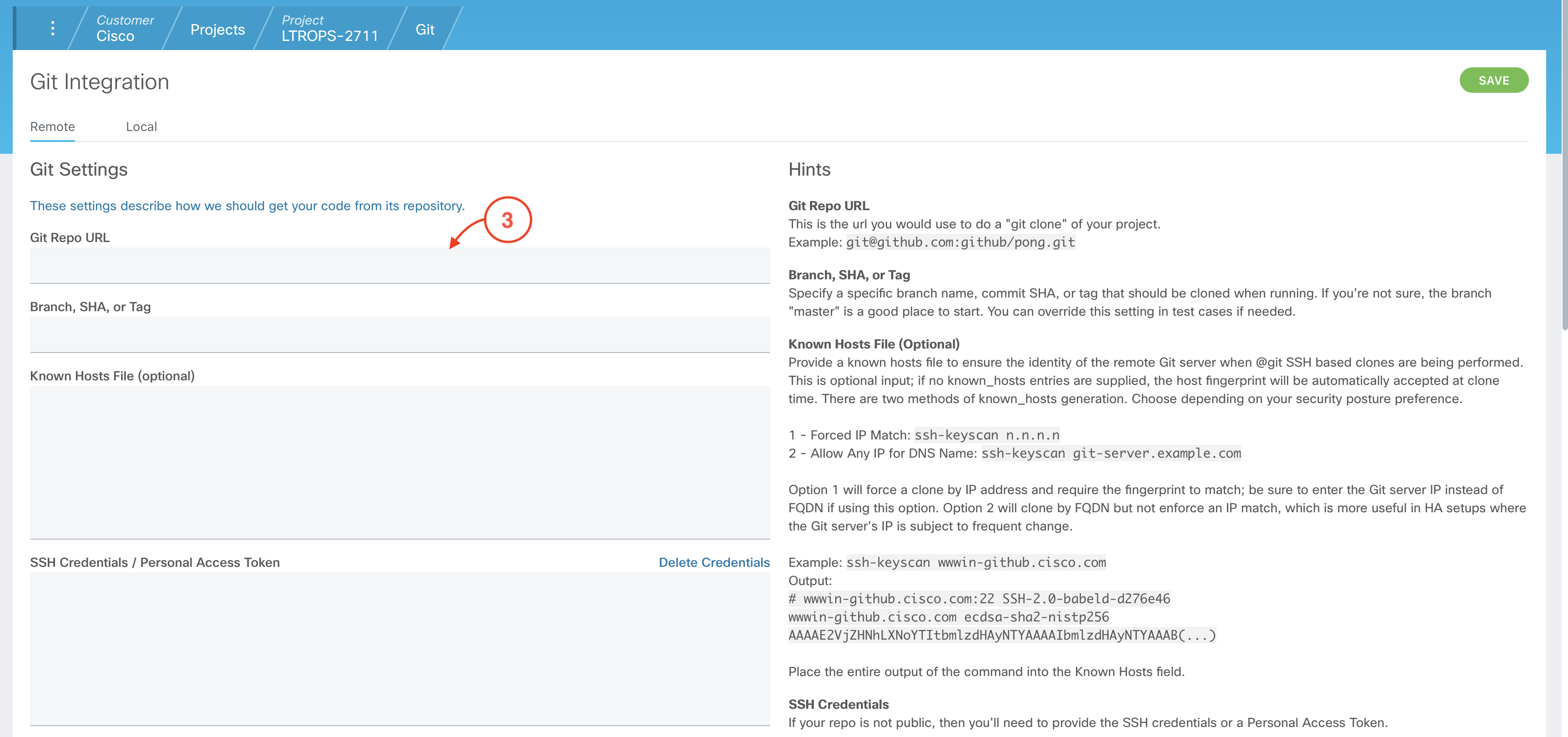
  4. Paste the Git Repo URL copied above into the Git Repo URL field


Step 4 - Return to your VS Code Server tab

Step 5 - Get your pod user's private ssh key from VS Code terminal

  1. Copy and paste the below command in the VS Code Server terminal window to get your pod user's private ssh key.

    cat ~/.ssh/id_ecdsa
            
  2. Copy the ssh private key (including the BEGIN and END headers) by highlighting the output and typing Ctrl + C, or by right-clicking and selecting the copy option.


    The copied output should look similar to the example below, but with a different key value:

    -----BEGIN OPENSSH PRIVATE KEY-----
    b3BlbnNzaC1rZXktdjEAAAAABG5vbmUAAAAEbm9uZQAAAAAAAAABAAAAaAAAABNlY2RzYS
    1zaGEyLW5pc3RwMjU2AAAACG5pc3RwMjU2AAAAQQRgHX24IxPXoaedlv8DnbFZi2rIYh8I
    7L4+MuOiJMQ6AT7RPHhX5Zt/gWF/a71PRJBIKhXeef4/W9B3U80bTmfbAAAAmLBS83mwUv
    N5AAAAE2VjZHNhLXNoYTItbmlzdHAyNTYAAAAIbmlzdHAyNTYAAABBBGAdfbgjE9ehp52W
    /wOdsVmLashiHwjsvj4y46IkxDoBPtE8eFflm3+BYX9rvU9EkEgqFd55/j9b0HdTzRtOZ9
    sAAAAgLz5FK8L823Q0z0fIBUCgYTmRLd3b4PpjvkRheadbb1EAAAAA
    -----END OPENSSH PRIVATE KEY-----

Step 6 - Return to your CXTM tab

Step 7 - Add the ssh key to your project's Git Config


From your project's Git Integration Config page:
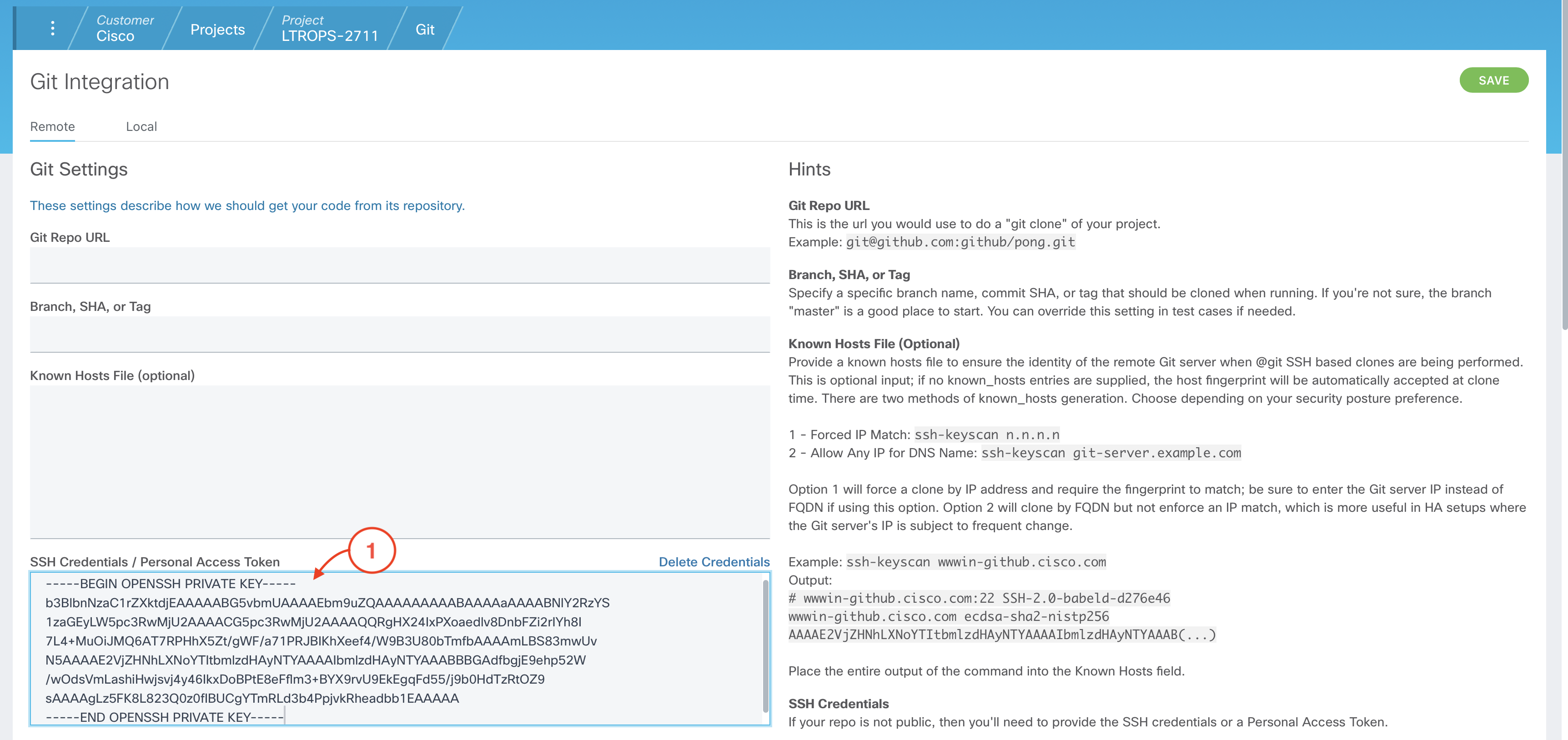
  1. Paste the ssh key copied above into the SSH Credentials / Personal Access Token field


  2. Click SAVE at the top of the page to save your Git Config settings


  3. Click on LTROPS-2711 in the breadcrumbs to return to your project homepage


Continue to the next section.



