Create Git Job Files
CXTM Git Integration
  • Introduction
  • NaC Introduction
  • Manual Validation
  • CXTM Introduction
  • CXTM Projects
  • CXTM Test Cases
  • CXTM Test Automation
  • CXTM Git Integration
  • CXTM Batches
  • CXTM Notifications
  • Final Deployment
  • CXTM Reporting
  • CXTM References
  • Bonus Content

Create Job Files

In this section, you will create Job Files in CXTM linked to Git.


Step 1 - Create Job File for Verify Features on NX-OS via REST Test Case


From your project home page:

  1. Click on VIEW TEST CASES


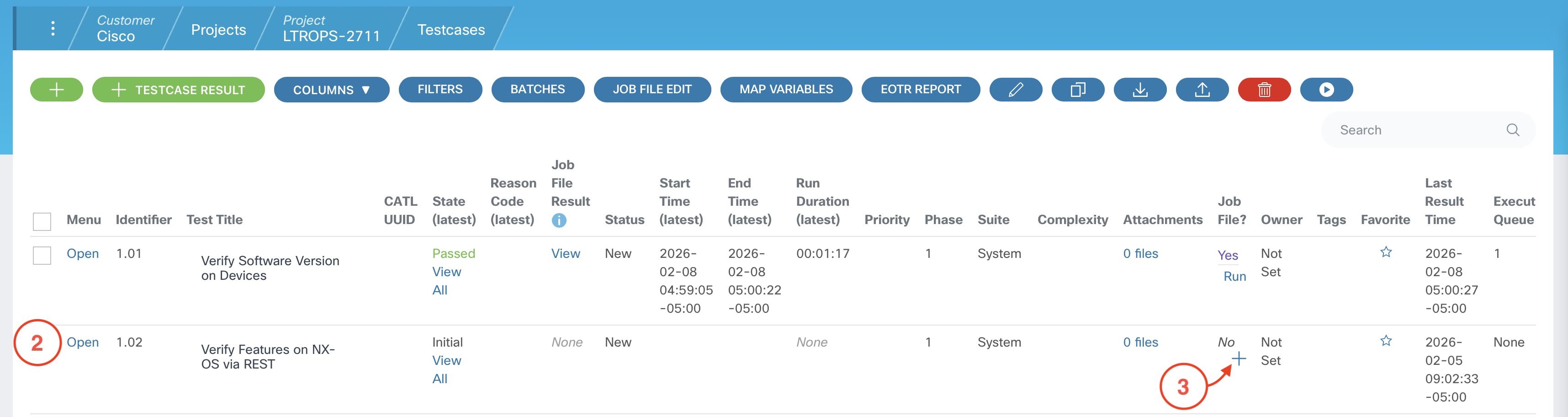
  2. Locate the test case Verify Features on NX-OS via REST that has identifier 1.02
  3. For this test case's row, click on the + (plus) icon under the Job File? column


  4. For Job File Type select Script in Git Repo from the dropdown
  5. For Runtime Image Version select cxta:25.6 from the dropdown


  6. Use the parameters below and insert them into the Parameter File section of your Job File.
  7.     
    DEVICES:
        - L1
        - L2
    
    EXPECTED_FEATURES:
        - bgp
        - interface-vlan
        - lldp
    
    EXPECTED_STATE: enabled
    

  8. Scroll down and enter the following command into the Command field under Advanced Settings
  9.     
    cxta -n cxtm/verify_features_on_NXOS_via_rest.robot



    While still under the Advanced Settings section...

  10. Select LTROPS-2711 Topology from the Default Topology dropdown
  11. Enter 2 into the Execution Queue field


  12. Scroll back up to the top of the Job File page and click Save


  13. Navigate back to your project home by clicking on the Project LTROPS-2711 tab in the navigation breadcrumbs.


Step 2 - Create Job File for Verify Interface State on NX-OS via REST Test Case


From your project home page:

  1. Click on VIEW TEST CASES


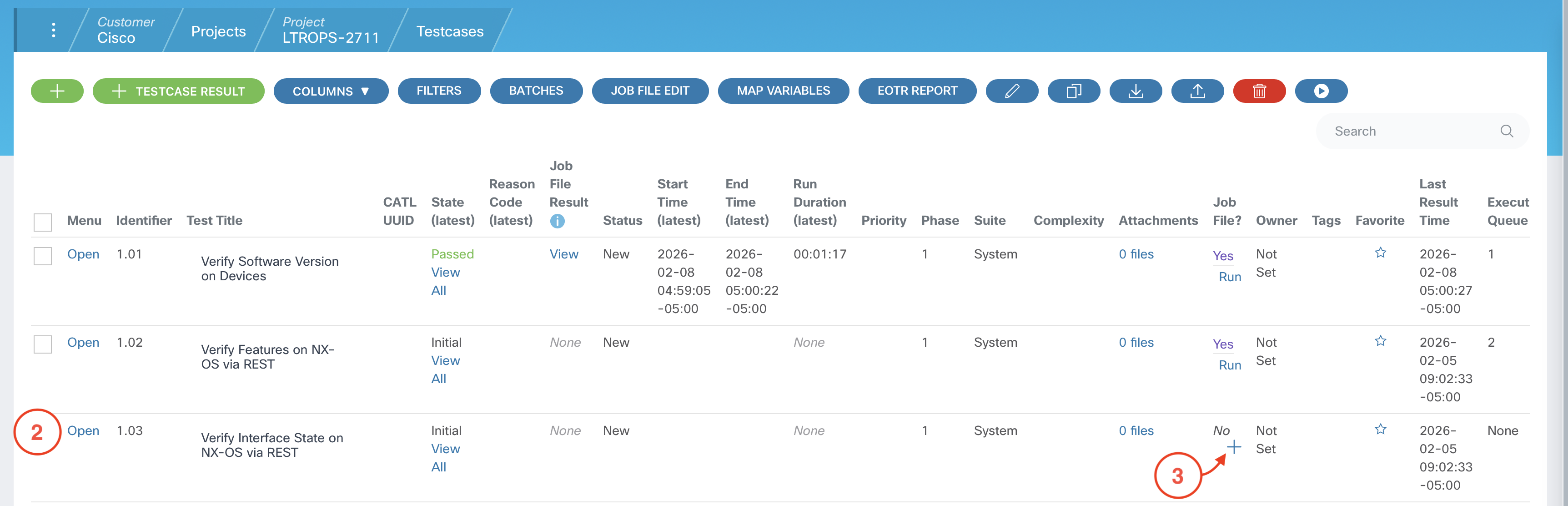
  2. Locate the test case Verify Interface State on NX-OS via REST that has identifier 1.03
  3. For this test case's row, click on the + (plus) icon under the Job File? column


  4. For Job File Type select Script in Git Repo from the dropdown
  5. For Runtime Image Version select cxta:25.6 from the dropdown


  6. Use the parameters below and insert them into the Parameter File section of your Job File.
  7.     
    DEVICES_DATA:
        S1:
          INTERFACES:
            - Lo0
            - Eth1/1
            - Eth1/2
            - Eth1/3
            - Eth1/11
            - Eth1/12
            - Eth1/13
        S2:
          INTERFACES:
            - Lo0
            - Eth1/1
            - Eth1/2
            - Eth1/3
            - Eth1/11
            - Eth1/12
            - Eth1/13
        L1:
          INTERFACES:
            - Vlan101
            - Lo0
            - Eth1/29
            - Eth1/30
            - Eth1/31
            - Eth1/32
        L2:
          INTERFACES:
            - Vlan102
            - Lo0
            - Eth1/29
            - Eth1/30
            - Eth1/31
            - Eth1/32
    
    EXPECTED_STATE: up
    

  8. Scroll down and enter the following command into the Command field under Advanced Settings
  9.     
    cxta -n cxtm/verify_interface_state_on_NXOS_via_REST.robot



    While still under the Advanced Settings section...

  10. Select LTROPS-2711 Topology from the Default Topology dropdown
  11. Enter 3 into the Execution Queue field


  12. Scroll back up to the top of the Job File page and click Save


  13. Navigate back to your project home by clicking on the Project LTROPS-2711 tab in the navigation breadcrumbs.


Step 3 - Create Job File for Verify BGP Neighbor State on NX-OS via REST Test Case


From your project home page:

  1. Click on VIEW TEST CASES


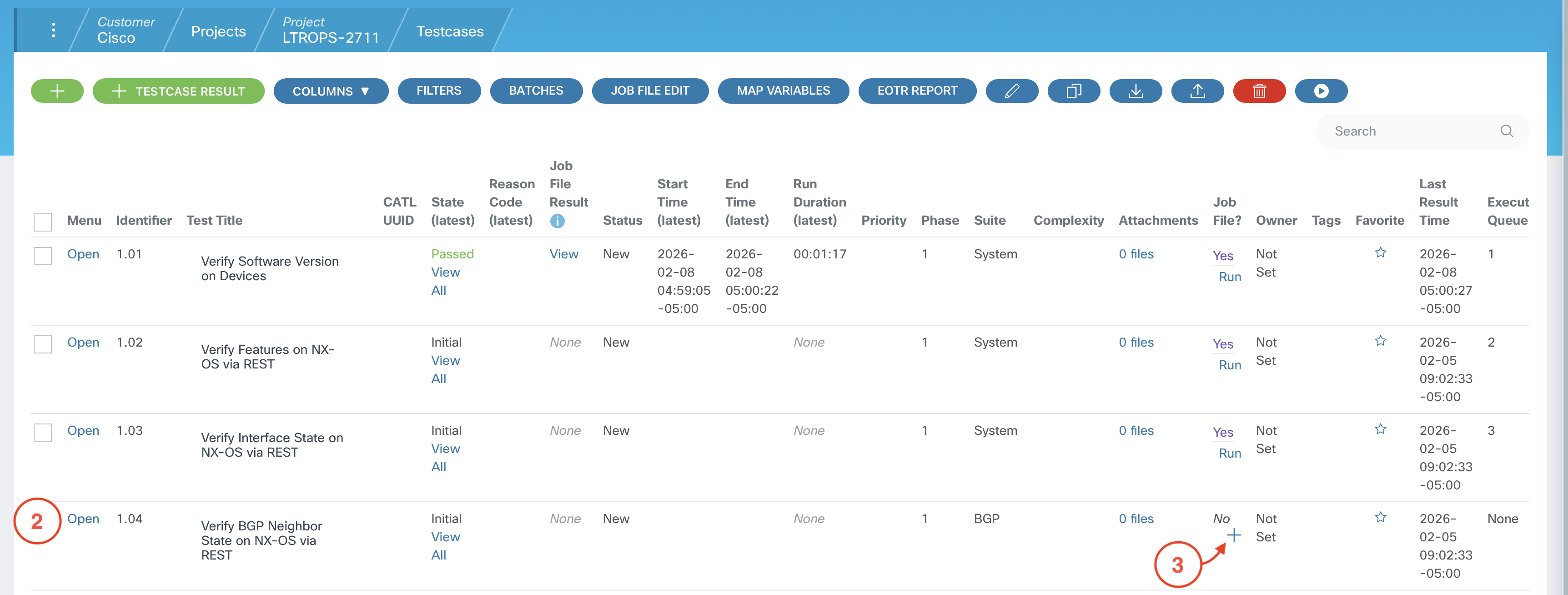
  2. Locate the test case Verify BGP Neighbor State on NX-OS via REST that has identifier 1.04
  3. For this test case's row, click on the + (plus) icon under the Job File? column


  4. For Job File Type select Script in Git Repo from the dropdown
  5. For Runtime Image Version select cxta:25.6 from the dropdown


  6. Use the parameters below and insert them into the Parameter File section of your Job File.
  7.     
    DEVICES:
        - S1
        - S2
        - L1
        - L2
    
    EXPECTED_STATE: Established
    

  8. Scroll down and enter the following command into the Command field under Advanced Settings
  9.     
    cxta -n cxtm/verify_BGP_neighbor_state_on_NXOS_via_REST.robot



    While still under the Advanced Settings section...

  10. Select LTROPS-2711 Topology from the Default Topology dropdown
  11. Enter 4 into the Execution Queue field


  12. Scroll back up to the top of the Job File page and click Save


  13. Navigate back to your project home by clicking on the Project LTROPS-2711 tab in the navigation breadcrumbs.


Step 4 - Create Job File for Verify Route Table State on NX-OS via REST Test Case


From your project home page:

  1. Click on VIEW TEST CASES


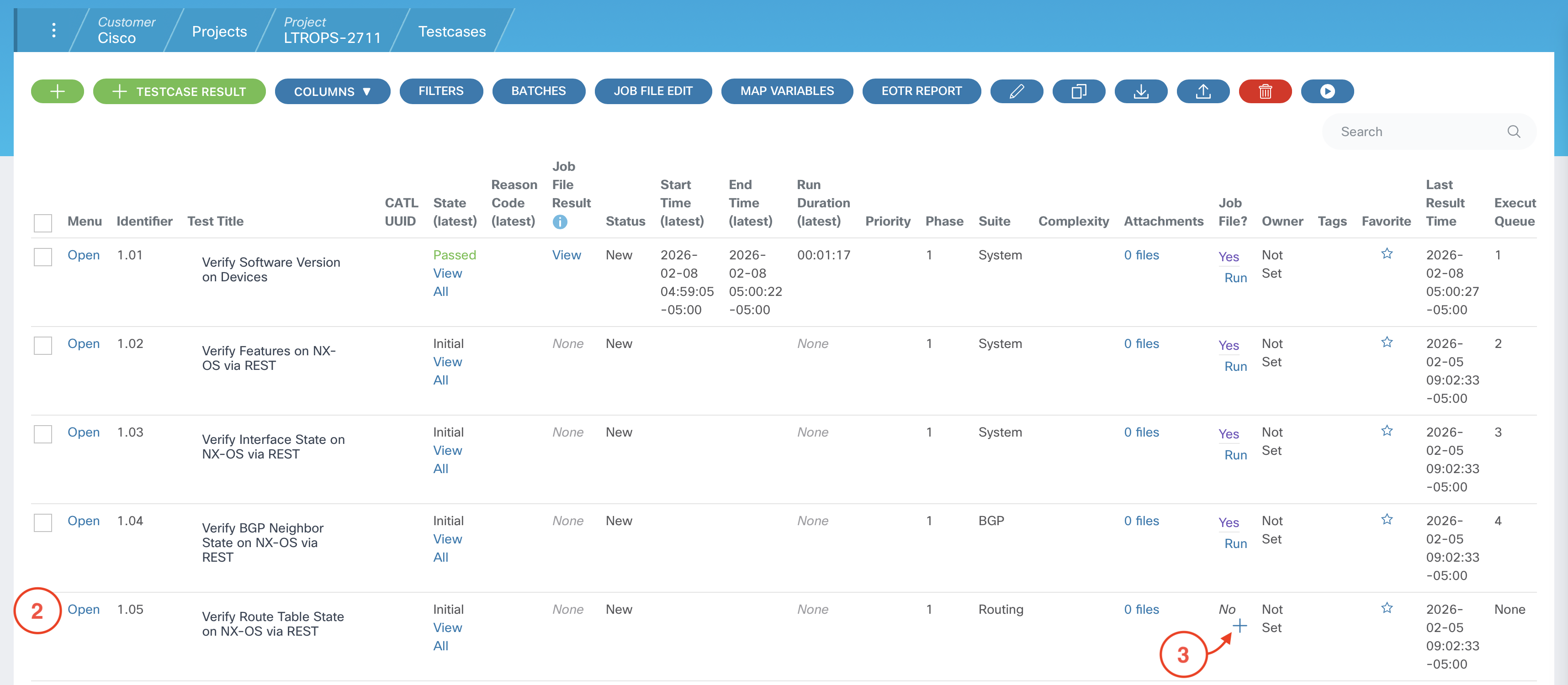
  2. Locate the test case Verify Route Table State on NX-OS via REST that has identifier 1.05
  3. For this test case's row, click on the + (plus) icon under the Job File? column


  4. For Job File Type select Script in Git Repo from the dropdown
  5. For Runtime Image Version select cxta:25.6 from the dropdown


  6. Use the parameters below and insert them into the Parameter File section of your Job File.
  7.     
    DEVICES:
        - S1
        - S2
        - L1
        - L2
    
    EXPECTED_ROUTES:
        - 10.0.1.1/32
        - 10.0.2.2/32
        - 10.254.101.0/24
        - 10.254.102.0/24
    

  8. Scroll down and enter the following command into the Command field under Advanced Settings
  9.     
    cxta -n cxtm/verify_route_table_state_on_NXOS_via_REST.robot



    While still under the Advanced Settings section...

  10. Select LTROPS-2711 Topology from the Default Topology dropdown
  11. Enter 5 into the Execution Queue field


  12. Scroll back up to the top of the Job File page and click Save


  13. Navigate back to your project home by clicking on the Project LTROPS-2711 tab in the navigation breadcrumbs.


Step 5 - Return to your project's Test Cases page


From your project home page:

  1. Click on VIEW TEST CASES


Continue to the next section.