Add CXTM CI/CD Stage
Final Deployment
  • Introduction
  • NaC Introduction
  • Manual Validation
  • CXTM Introduction
  • CXTM Projects
  • CXTM Test Cases
  • CXTM Test Automation
  • CXTM Git Integration
  • CXTM Batches
  • CXTM Notifications
  • Final Deployment
  • CXTM Reporting
  • CXTM References
  • Bonus Content

Add CXTM CI/CD Stage

In this section, you will add the CXTM test automation stage to your GitLab CI/CD pipeline to automatically validate network configurations after deployment. This stage will execute a series of tests using Cisco's CX Test Manager (CXTM) to ensure that the deployed Nexus fabric is functioning as expected and meets the defined requirements. By integrating CXTM into your CI/CD pipeline, you can catch potential issues early in the deployment process and maintain a reliable and consistent network infrastructure.


Step 1 - Return to VS Code Server

  1. Return to your VS Code Server tab.

Step 2 - Create and Switch to a New Git Branch

  1. Copy and paste the below command in the VS Code Server terminal window to create and switch to a new branch.

  2. 
    git checkout -b fabric-expansion


Step 3 - Add CXTM Stage to Pipeline

You will now add the cxtm stage to the stages section of your .gitlab-ci.yml file. This stage will run after the deploy stage to execute automated tests that validate the network configuration.
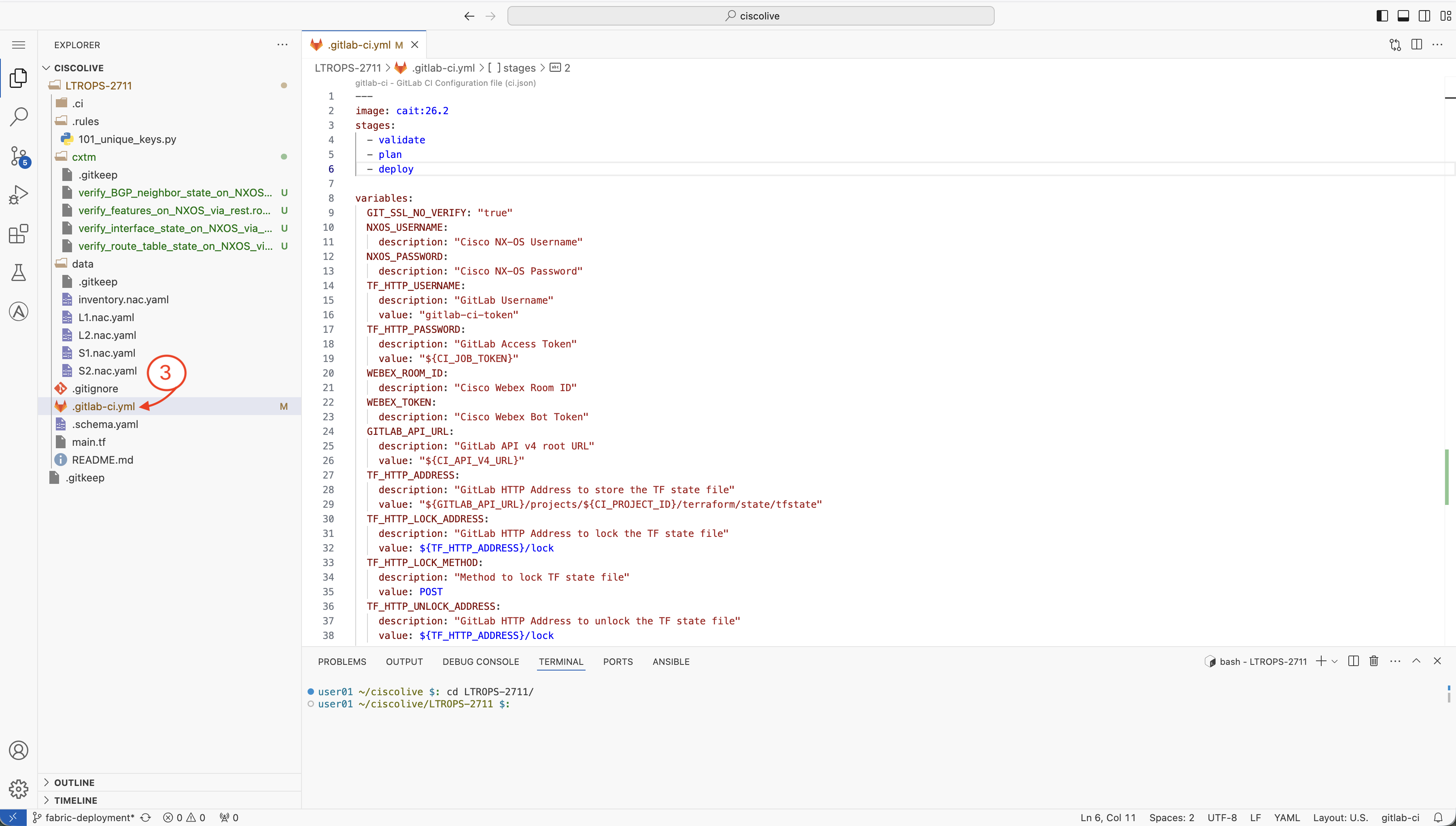
  1. Select the .gitlab-ci.yml file from the file explorer on the left side menu to open and edit it.


Step 4 - Add CXTM Stage to Pipeline Configuration

You will now add the cxtm stage to the stages section of your .gitlab-ci.yml file. This stage will run after the deploy stage to execute automated tests that validate the network configuration.

  1. Copy the following line of code to add the cxtm stage to your .gitlab-ci.yml file pipeline.

  2. 
      - cxtm
    
            
  3. Locate the stages section in your .gitlab-ci.yml file and paste - cxtm as a new stage after - deploy.
  4. Confirm that your stages section matches the following:
  5. 
    stages:
      - validate
      - plan
      - deploy
      - cxtm


Step 5 - Add CXTM Stage Configuration

Now you will add the job configuration for the CXTM stage. This job will execute your CXTM test batch after the deployment completes.

  1. Scroll down to the end of your .gitlab-ci.yml file and add the following code to configure the cxtm stage of your pipeline.

  2. 
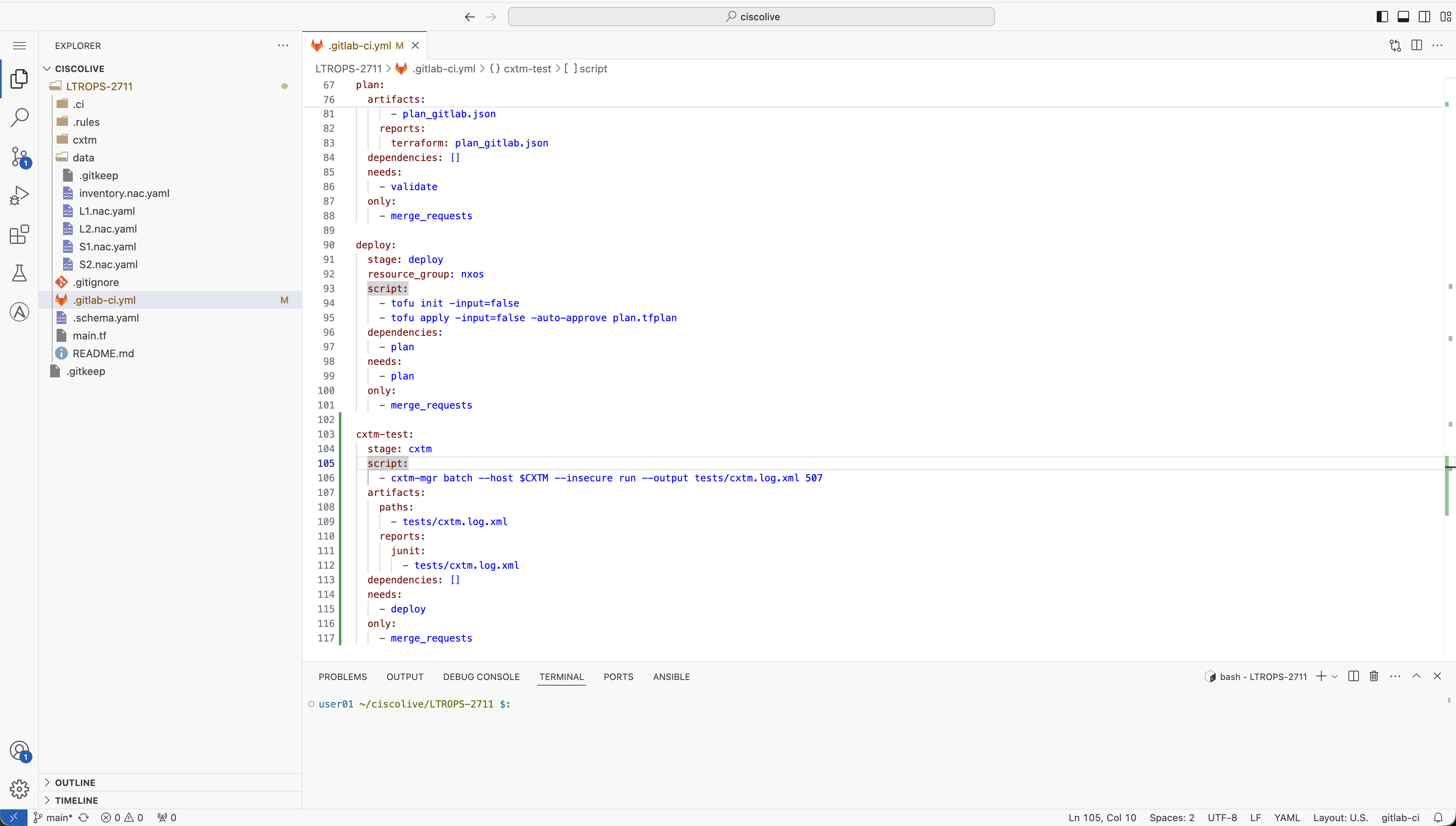
    cxtm-test:
      stage: cxtm
      script:
        - cxtm-mgr batch --host $CXTM --insecure run --output tests/cxtm.log.xml batch-id
      artifacts:
        paths:
          - tests/cxtm.log.xml
        reports:
          junit:
            - tests/cxtm.log.xml
      dependencies: []
      needs:
        - deploy
      only:
        - merge_requests


  3. Replace <batch id> in the cxtm-test job with your CXTM batch ID from the CXTM Batches section.
  4. Confirm that your .gitlab-ci.yml file matches the screenshot below before going to the next step.


  5. Press Ctrl + s to save the .gitlab-ci.yml file.
    If the keyboard shortcut does not work, please open the VS Code Server hamburger menu and click File > Save.

Step 6 - Return to CXTM and Navigate to Your User Profile

Before your pipeline can execute CXTM tests, you need to configure the CXTM API key and host IP as GitLab CI/CD variables. Start by generating your CXTM API key.

In your browser, return to CXTM:

  1. In the top right corner, click on your user profile dropdown
  2. Click Manage Profile


Step 7 - Generate CXTM API Key

On the User Settings page, you should see that No API key has been assigned for your CXTM user.
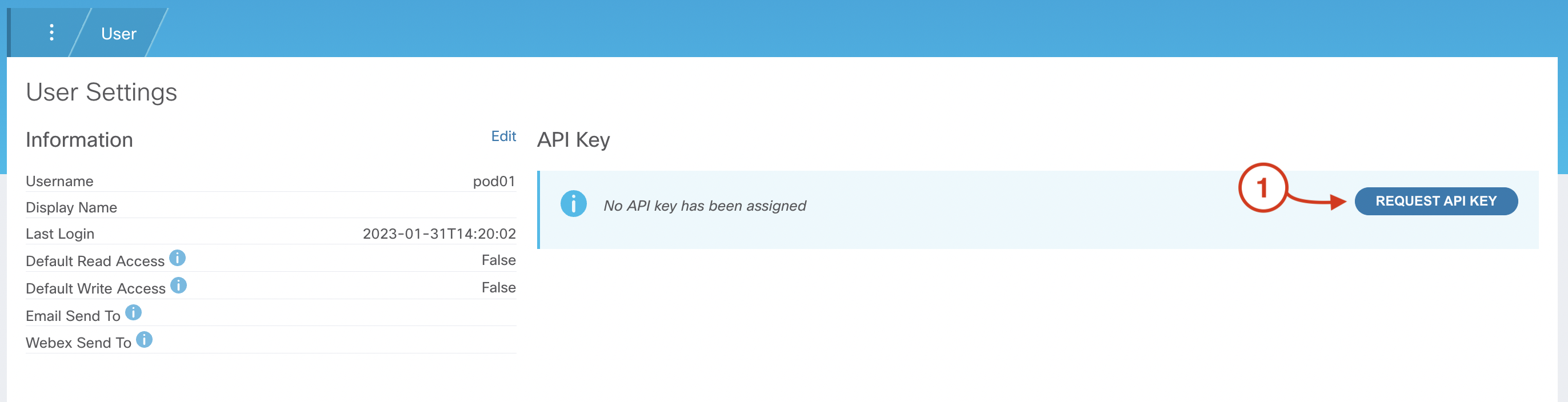
  1. Click REQUEST API KEY


Note

If you find that an API Key has already been assigned, simply click Delete API Key and then Request API Key to create a new key

Step 8 - Copy CXTM API Key

After generating your CXTM API Key:
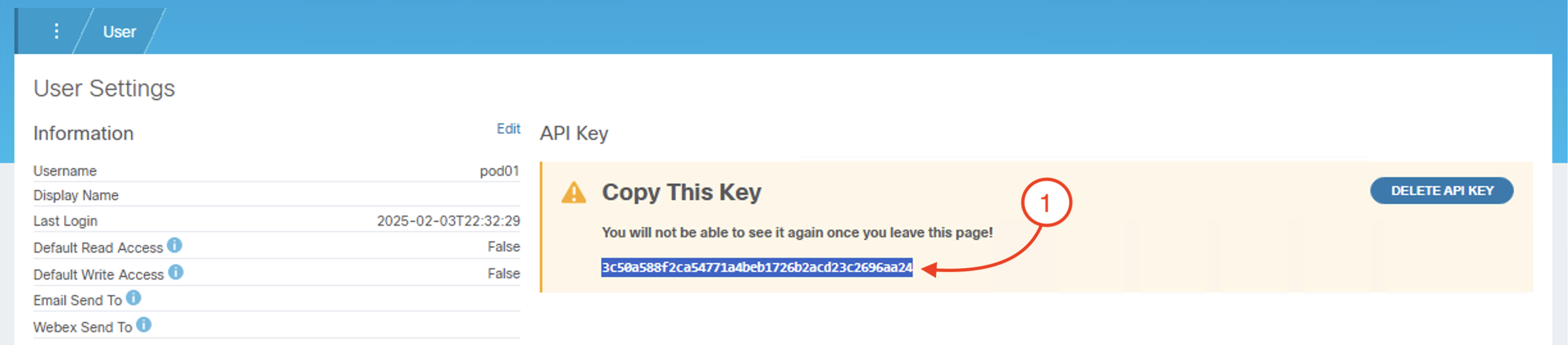
  1. With your mouse, click and highlight the generated API key
  2. Copy the API key you have highlighted with the keyboard shortcut Ctrl+c or right-click, and then click Copy


  3. Save this API Key in a text file for use in the next steps

Step 9 - Navigate to CI/CD Settings in Your GitLab Project

To store your CXTM API key as an environment variable in GitLab, return to your GitLab browser window and navigate to CI/CD settings in your GitLab project.
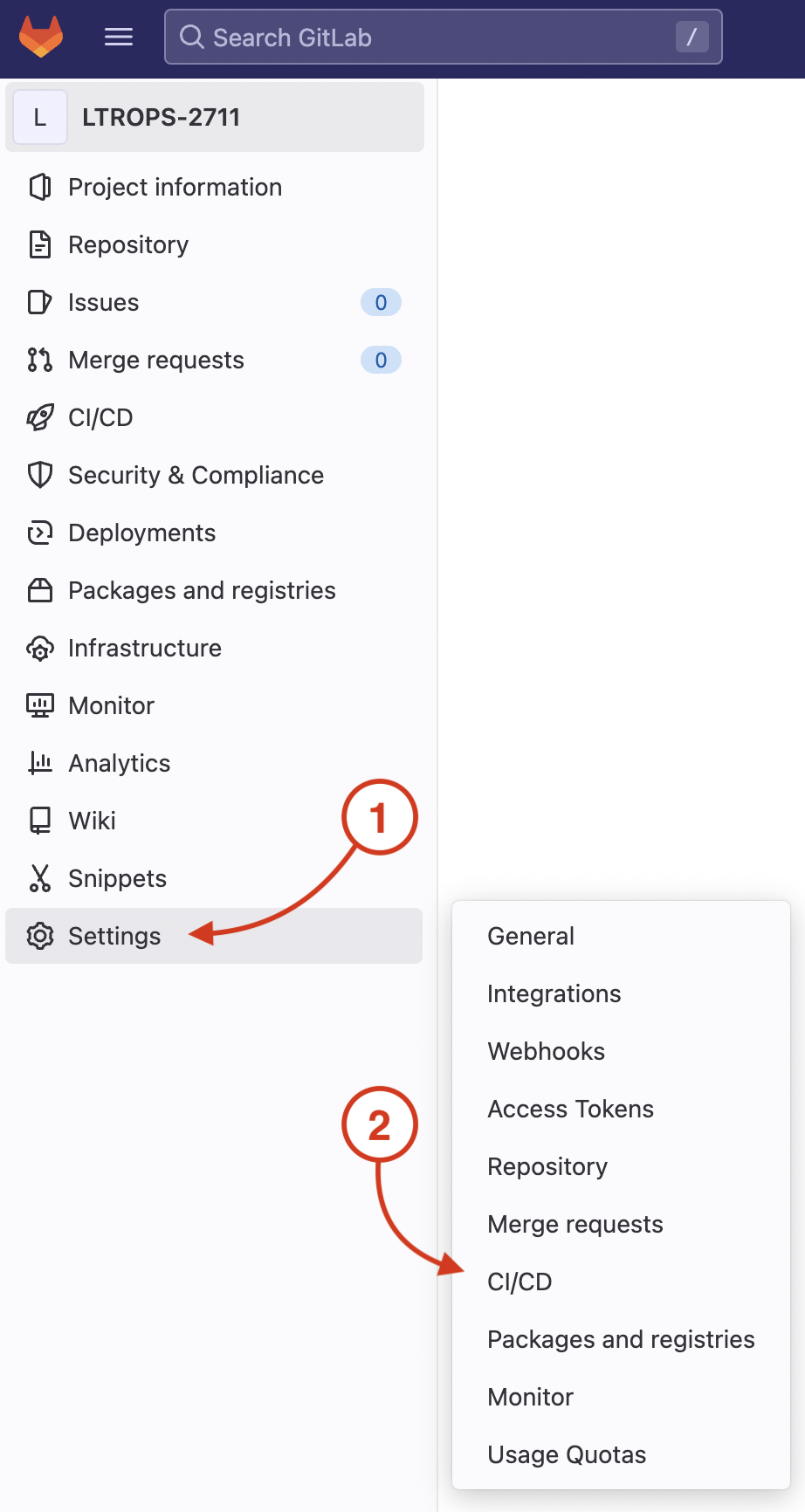
  1. Click Settings
  2. Click CI/CD


Step 10 - Navigate to CI/CD Variables

On your GitLab repo's CI/CD Settings page:
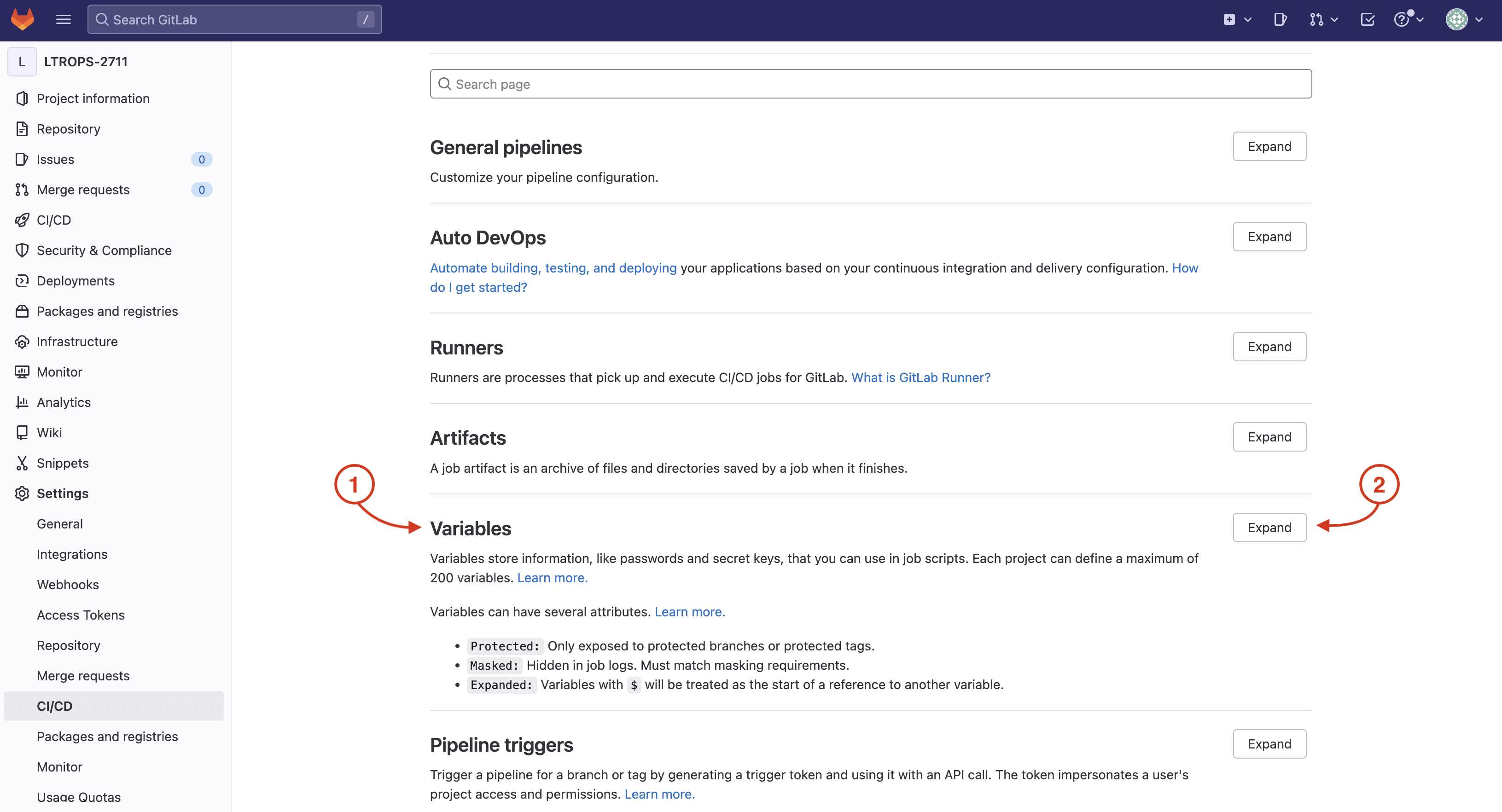
  1. Locate Variables
  2. Click Expand


Step 11 - Launch and Edit Variable Pop-up

Launch the Add Variable pop-up to add your CXTM API key as a variable:

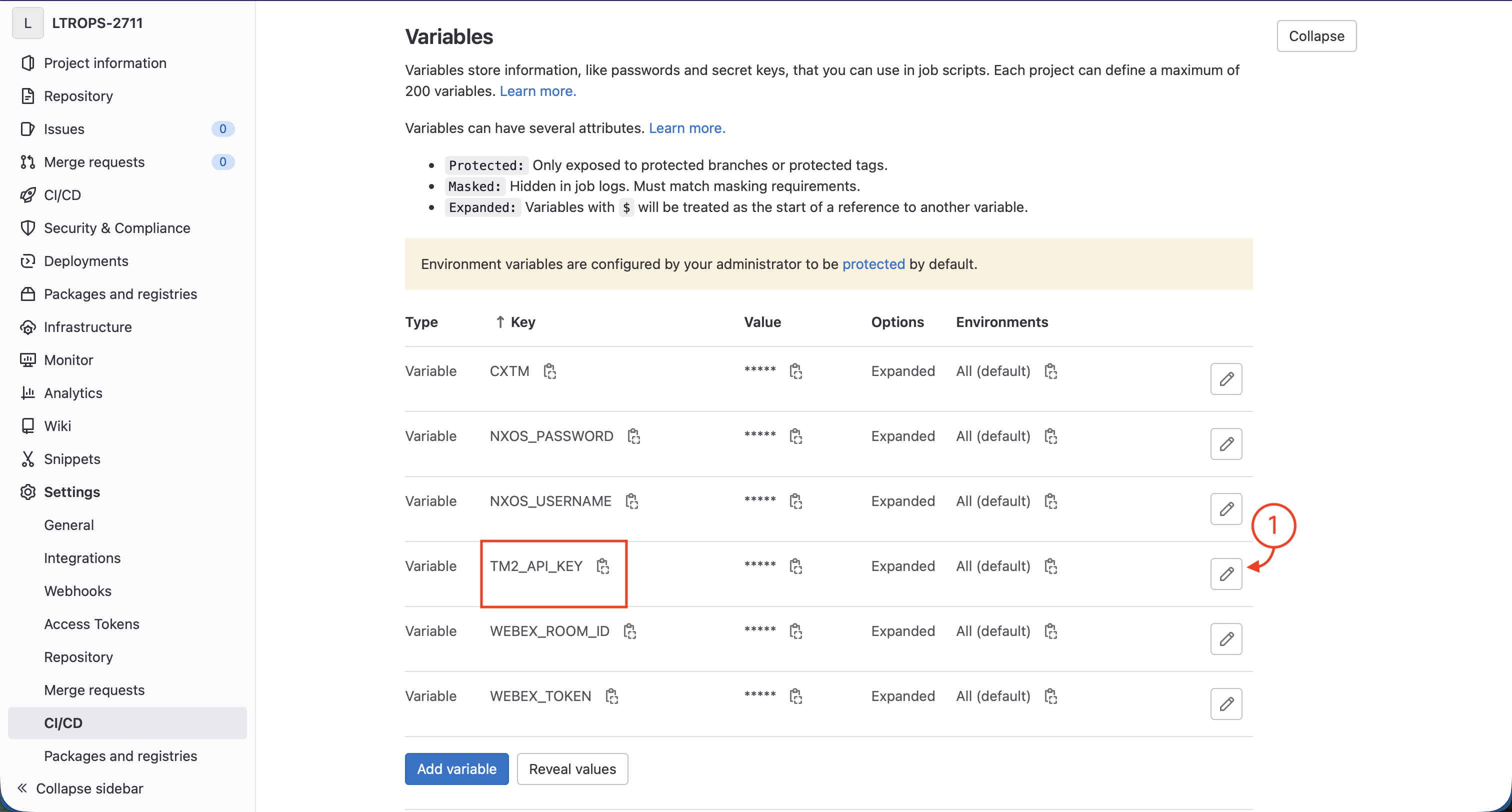
  1. Locate the TM2_API_KEY variable and click the edit icon.


Step 12 - Add CXTM API Key Value

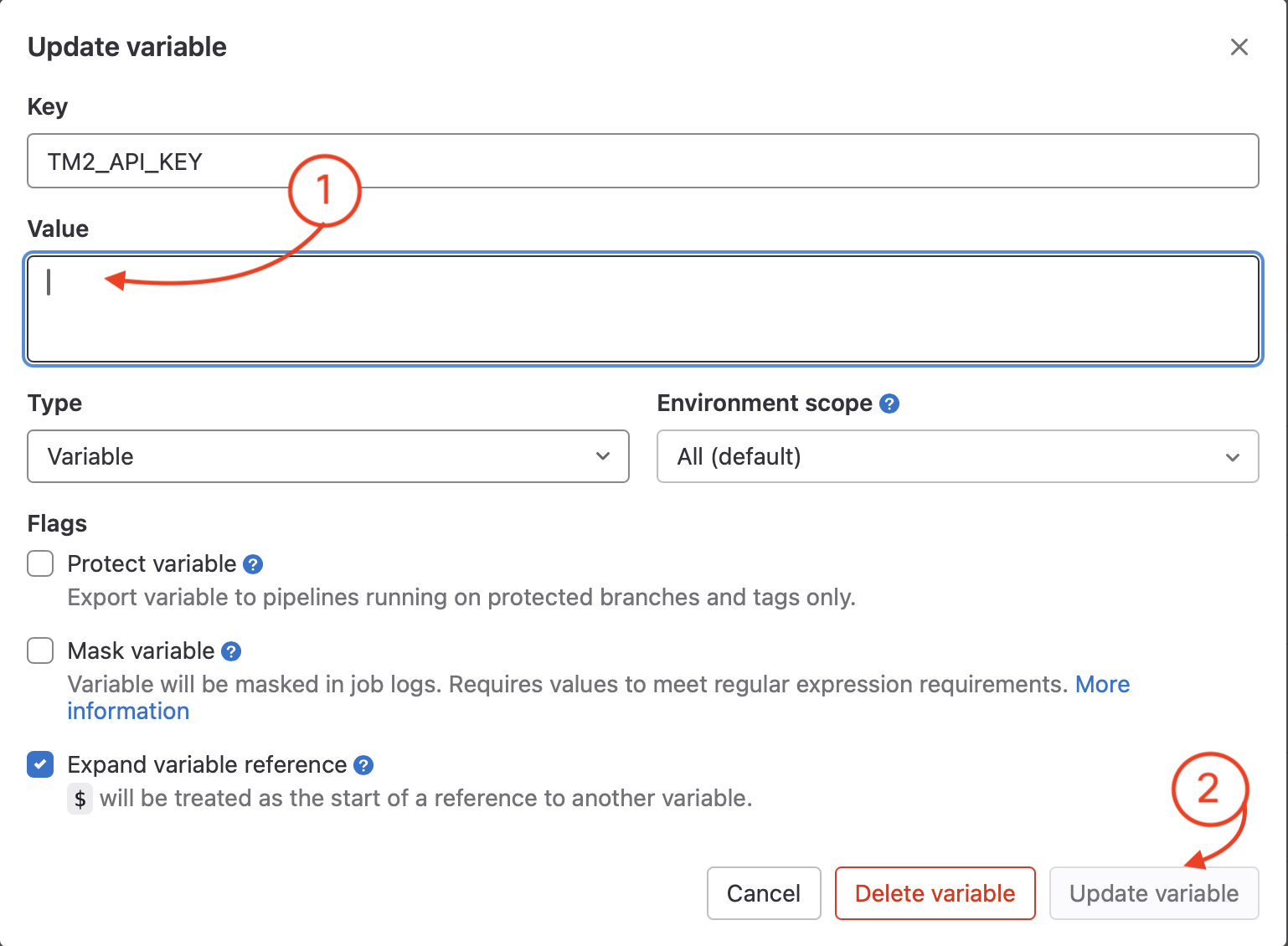
The TM2_API_KEY variable has already been created for you, so you just need to update the existing TM2_API_KEY variable value.

  1. Value: Paste in the CXTM API key you copied earlier
  2. Click Add variable


Continue to the next section to add the notification stage to your CI/CD pipeline.