There are multiple ways to trigger automated test cases to run individually in CXTM. Another option is to add test cases to logical
groups for batch execution.
Step 1 - Select Test Cases for the System Batch
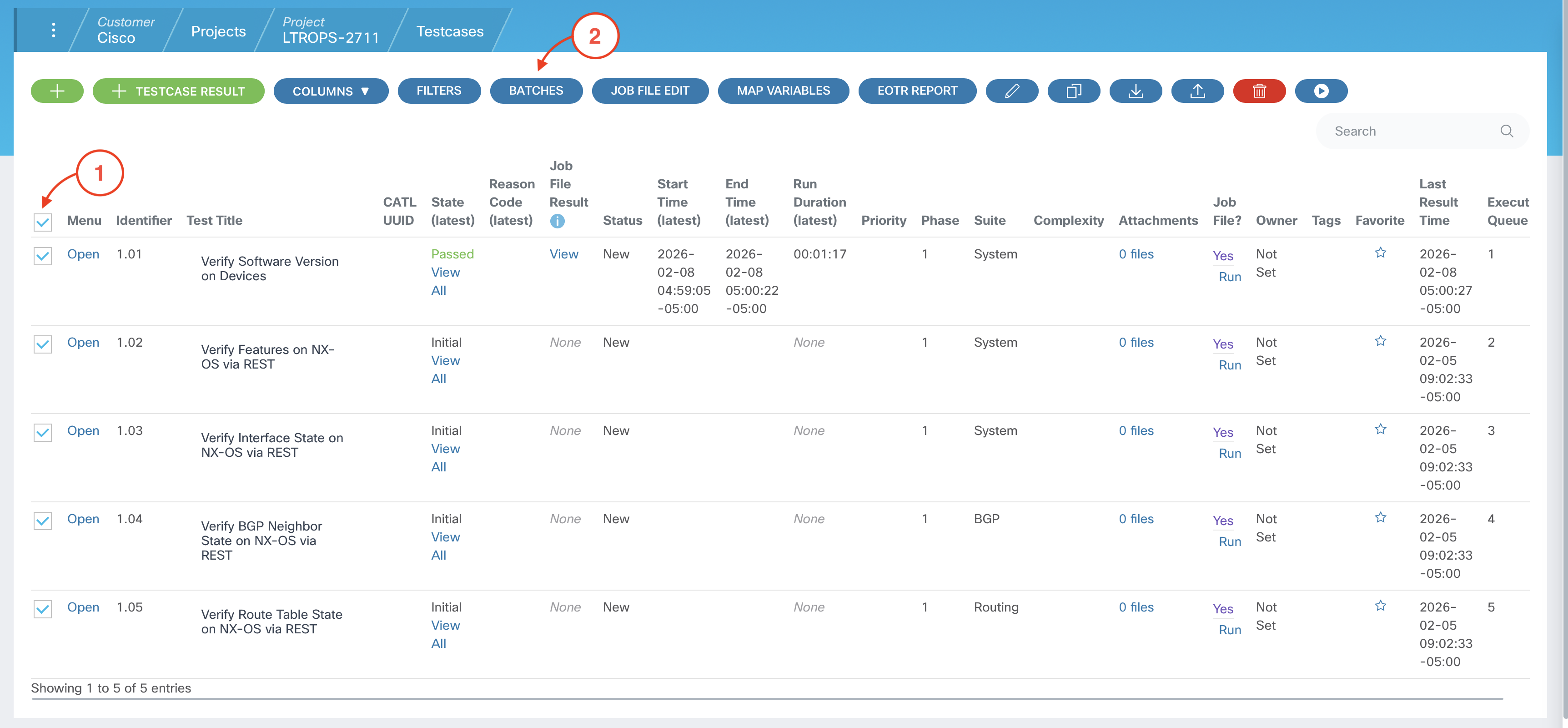
From your project's Test Cases page:
Click on the Select all checkbox and confirm that all of the test cases have been selected
Click the BATCHES button to launch the Testcase Batches popup
Step 2 - Confirm Batch Options
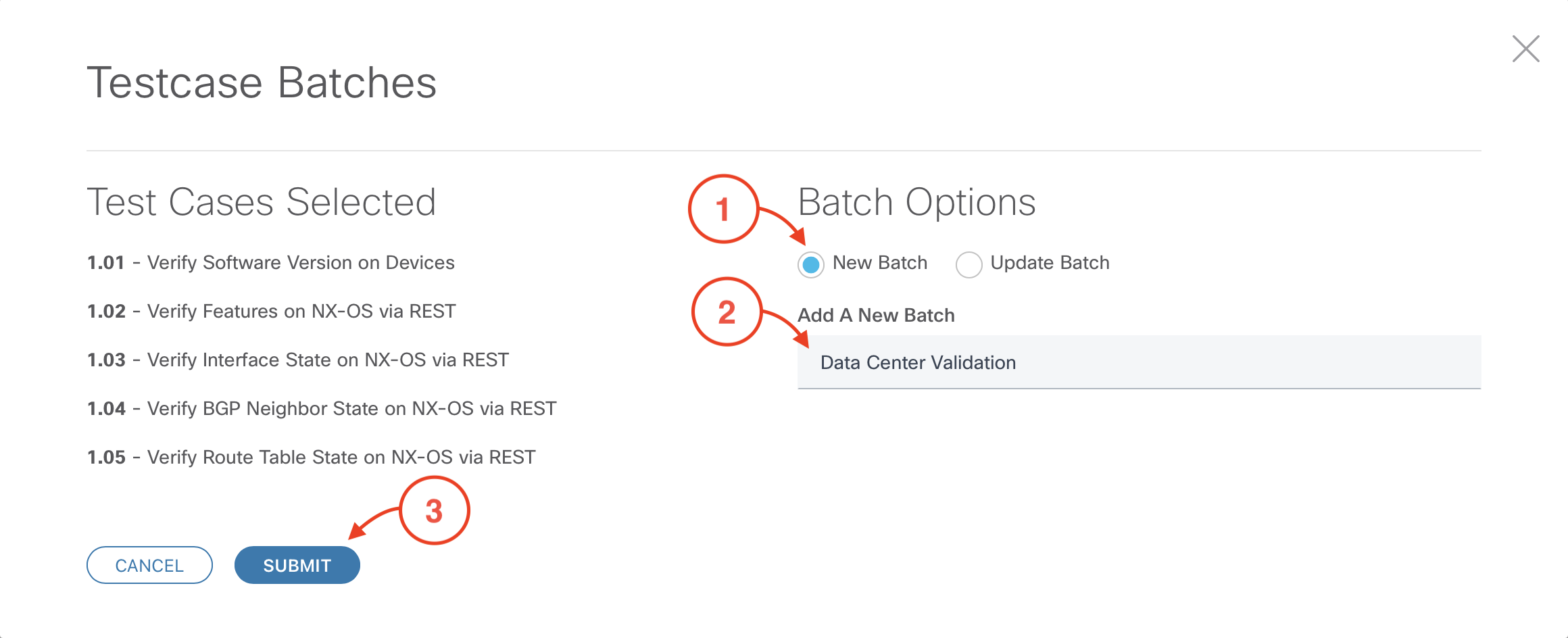
In the Testcase Batches popup, make the following selections:
Confirm that the New Batch radio button is selected
Add A New Batch:
Data Center Validation
Click SUBMIT
Step 3 - Collect the Batch ID and save the Batch
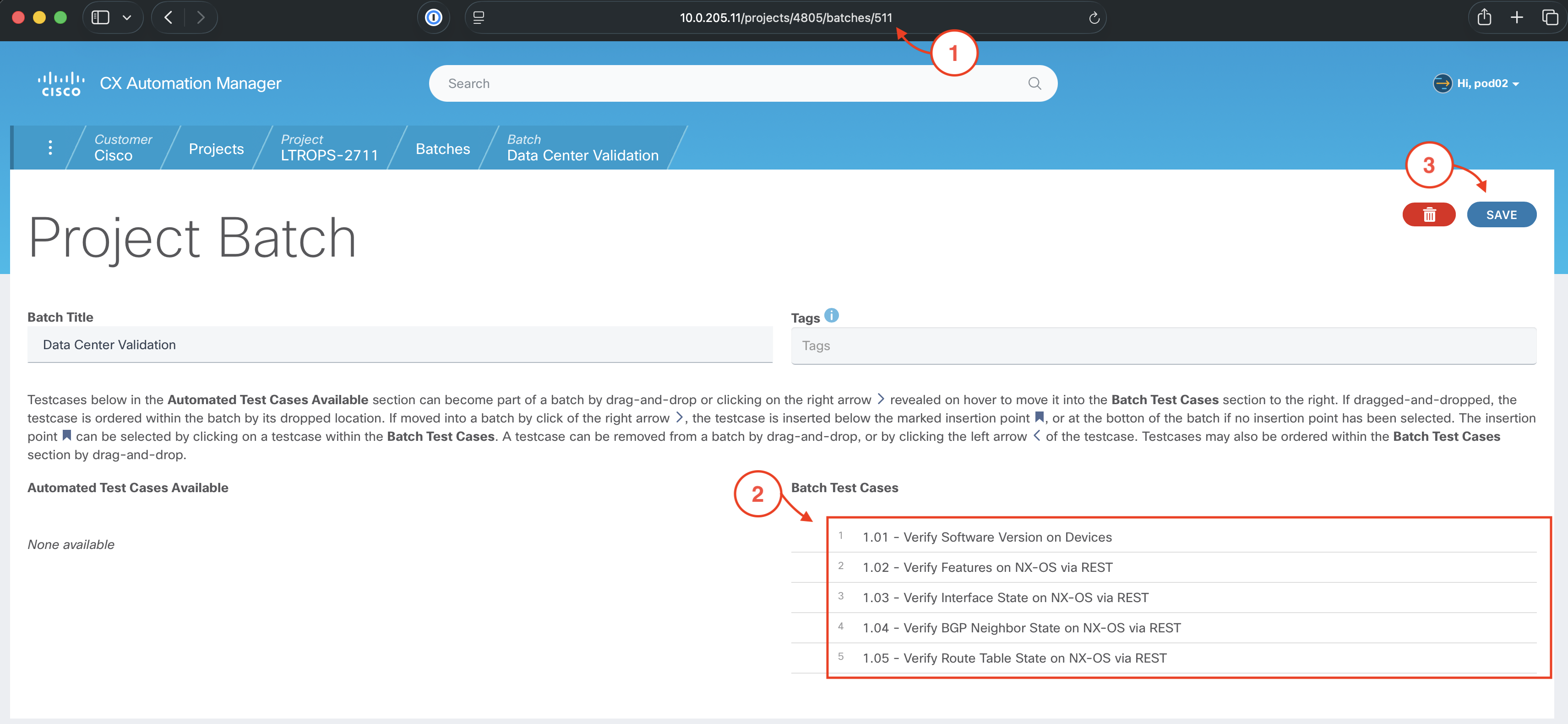
From the Project Batch page:
Collect the 3-digit batch ID for the Data Center Validation batch directly from the URL ("511" in this example), and save
it in a text file on your local workstation for use in the upcoming section.
Confirm that all of your test cases appear under Batch Test Cases
Click the SAVE button
Note
Be sure to save the Batch ID in a text file on your local workstation before moving on. It will be added to your .gitlab-ci.yml file in the upcoming section.
Continue to the next section to run the batches and review the results.